playova

PLAYOVA / Fire TV · Fire OS

More of your television, on Fire TV.

Watch your own M3U or Xtream Codes source on Fire TV devices running Fire OS. Follow up to four live channels in multiview, save your layouts and record permitted broadcasts, with controls made for your remote.

Up to four live channels, together.

01 / 21

Up to four live channels, together.

Open two channels side by side or use a grid for three or four. Move the focus with your remote to choose which channel you hear. Each source must allow enough simultaneous connections; smooth playback depends on your device, network and streams.
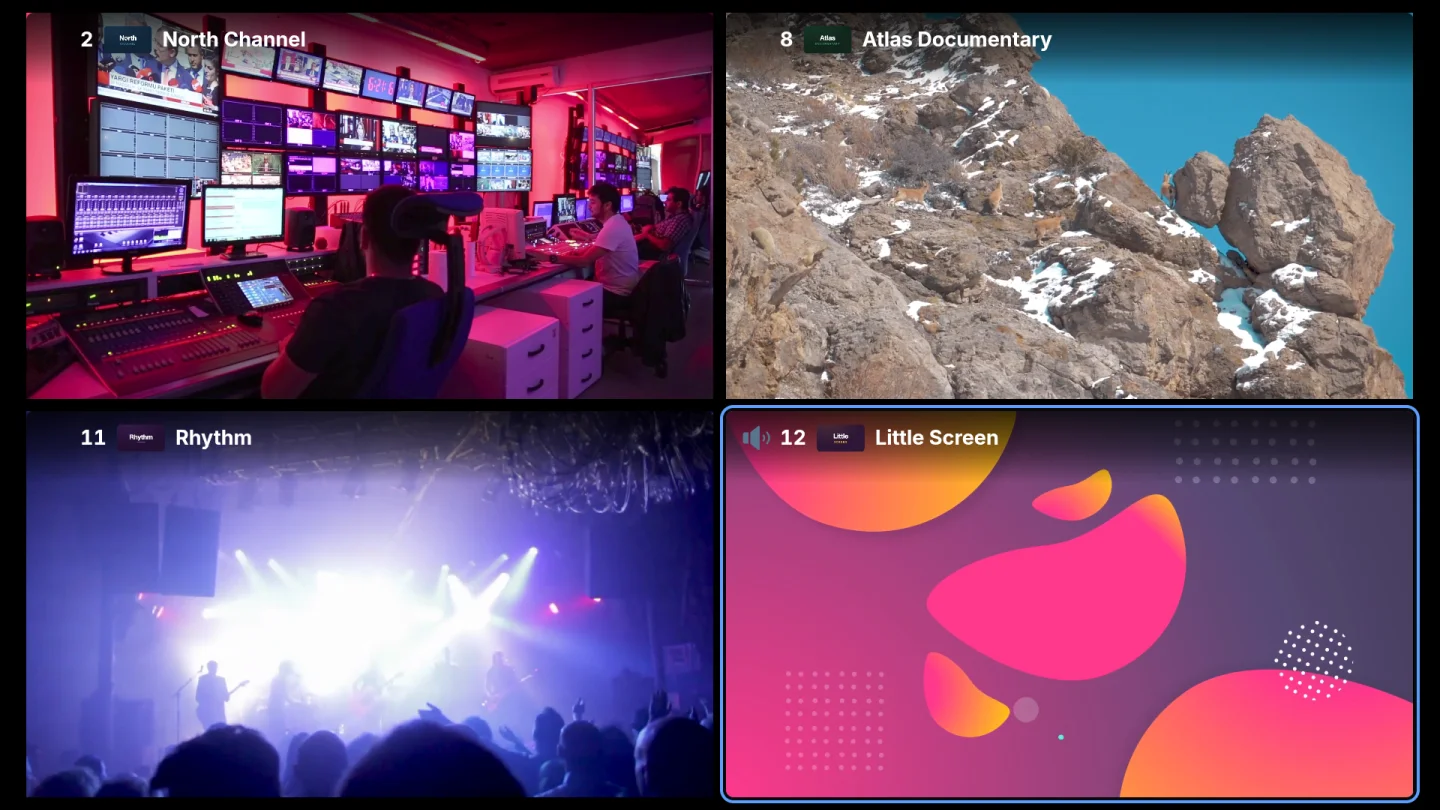
Up to four live channels, together.

02 / 21

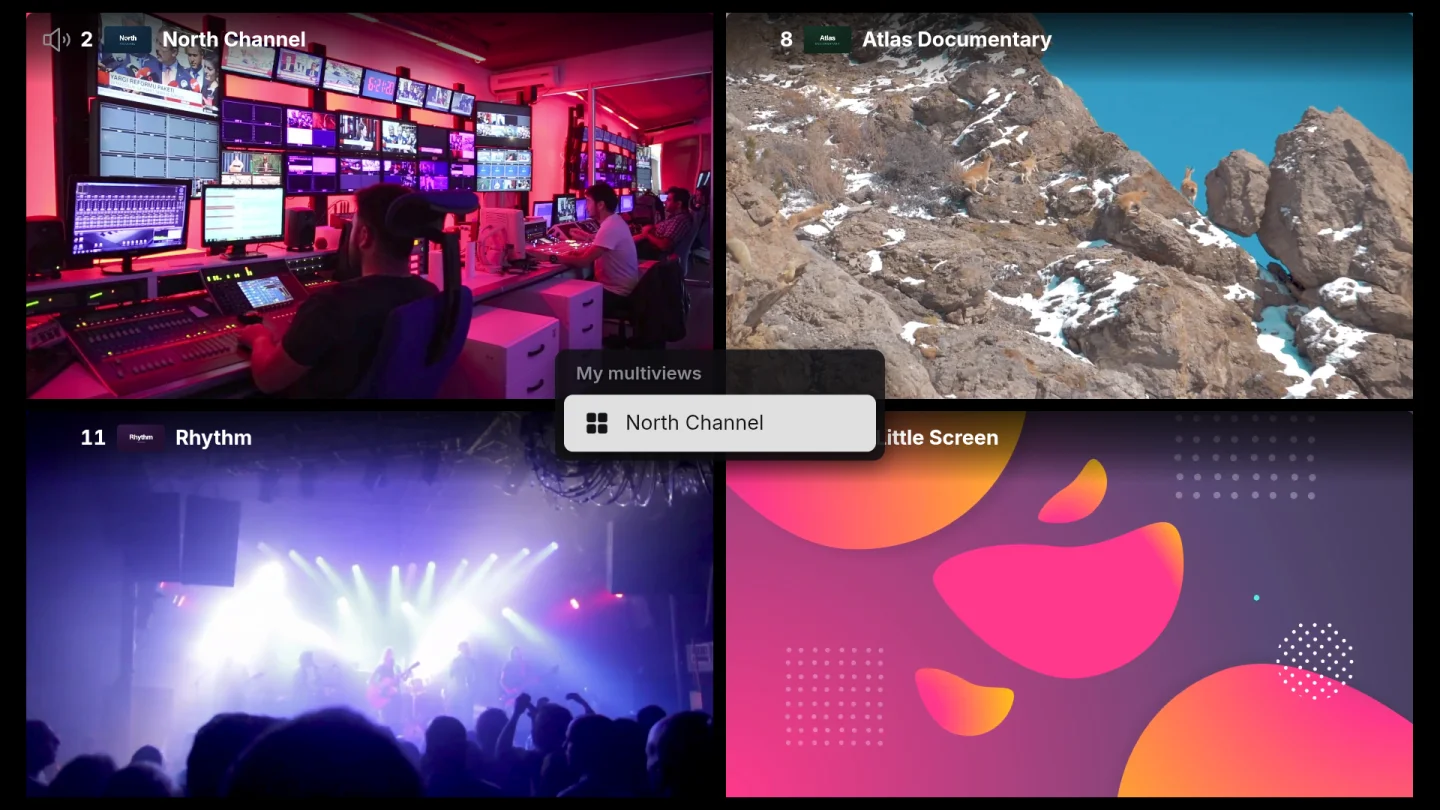
Save a layout for next time.

Give your multiview layout a name and reopen it from the same profile and starting source. A layout can include channels from different sources, within each source’s connection allowance.

Save a layout for next time.

03 / 21

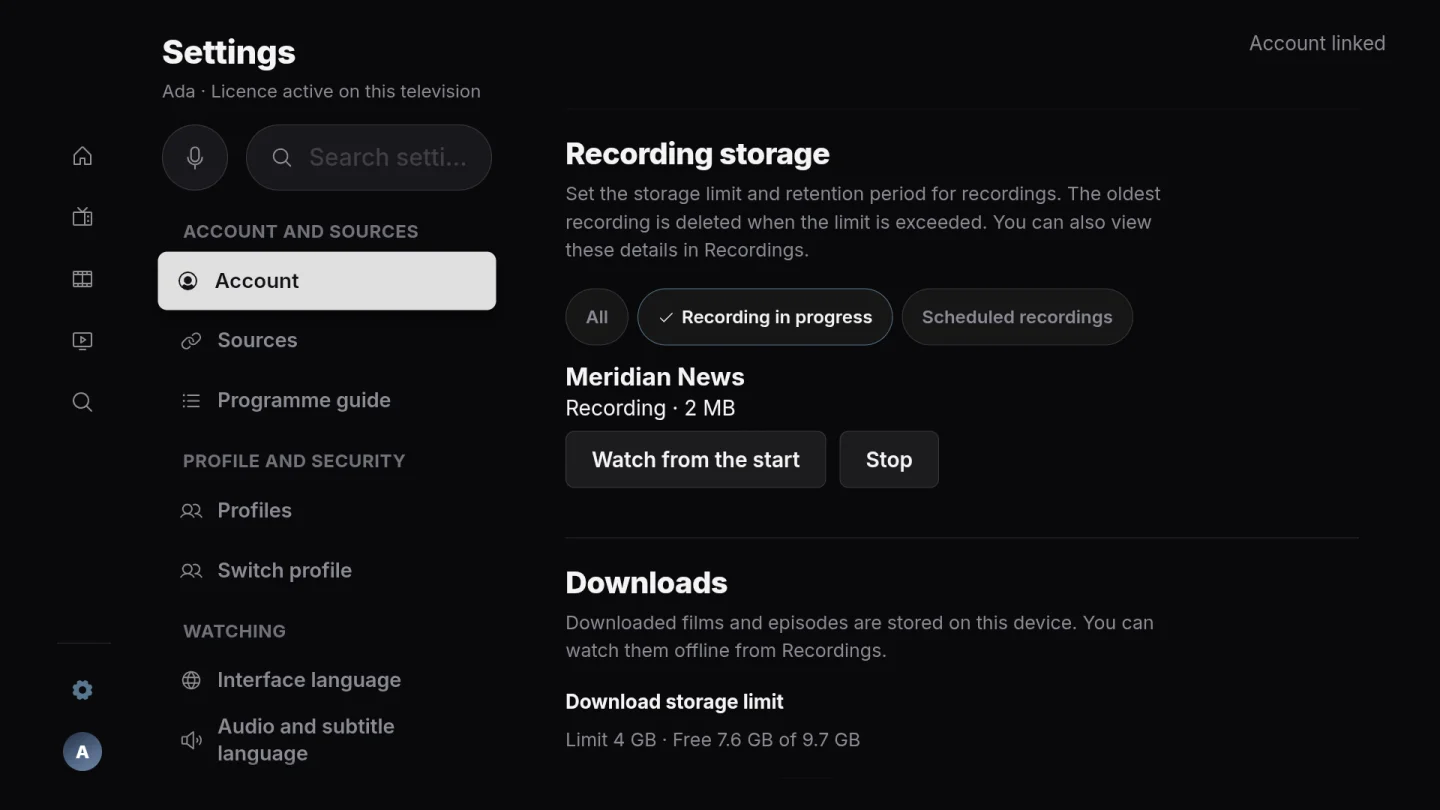
Record now. Plan from the guide.

Record the current live channel or schedule a future programme from the programme guide. Manage recordings and scheduled jobs on this device. Your source must permit recording; available connections, storage, power and network access matter.

Record now. Plan from the guide.

04 / 21

Built for your remote

Move through the library and player with the directional controls on your remote.

Built for your remote

05 / 21

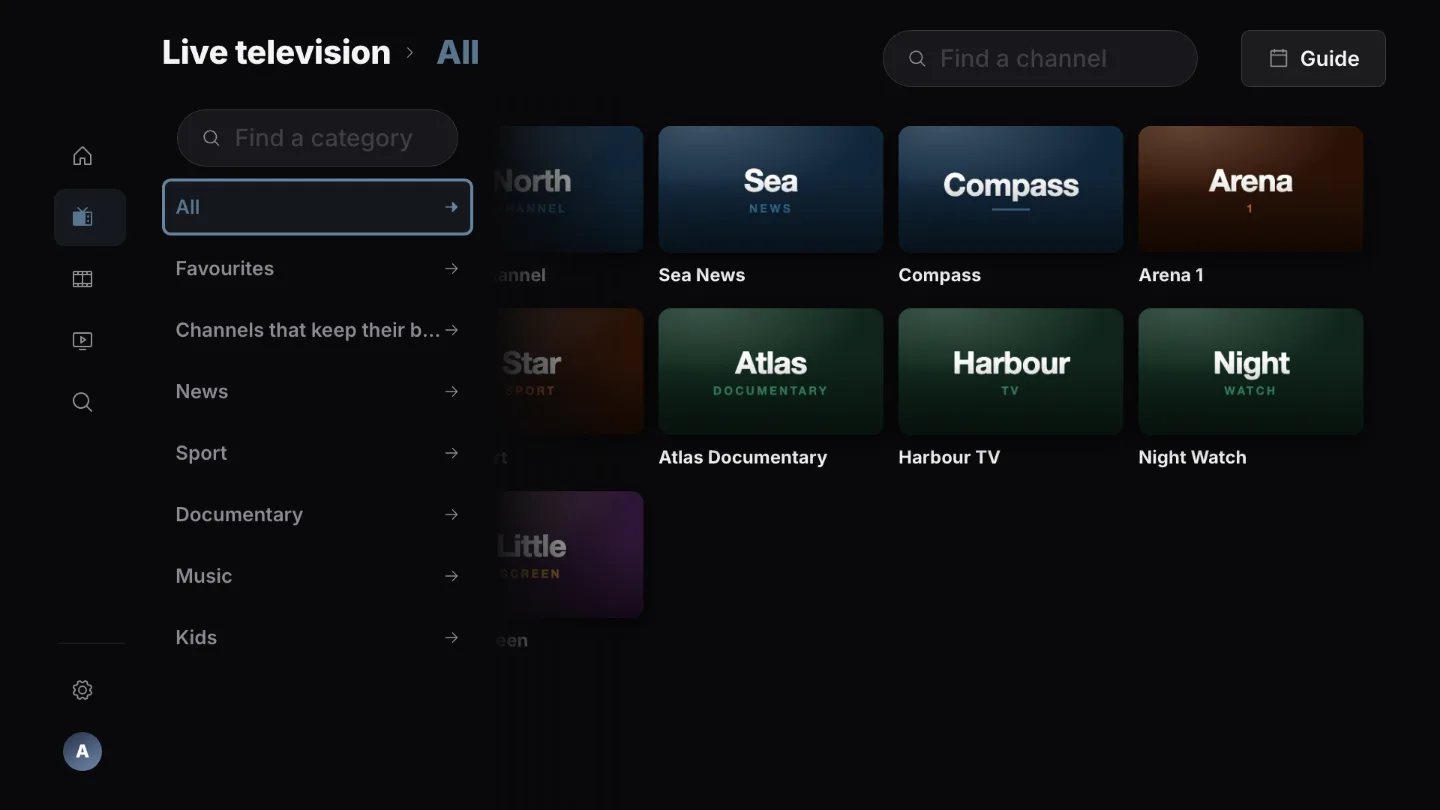
Your live channels

Open your own source and browse its live channels. Playback depends on your provider, stream format and device.

Your live channels
The shared Playova TV interface.

06 / 21

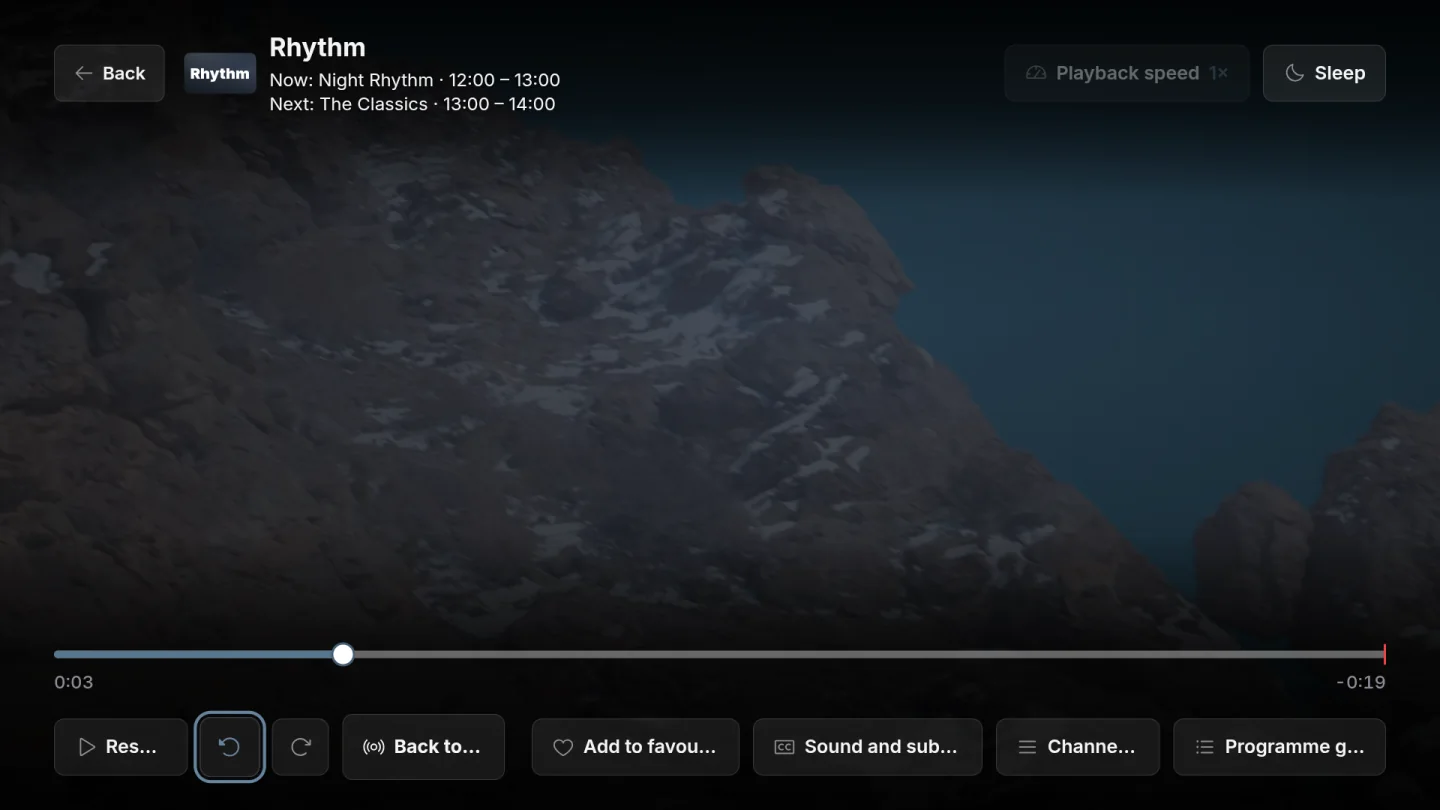
Pause. Go back. Return live.

Pause a live channel and move back within the available live window when your source and device support it. The available window depends on the stream and provider.

Pause. Go back. Return live.

07 / 21

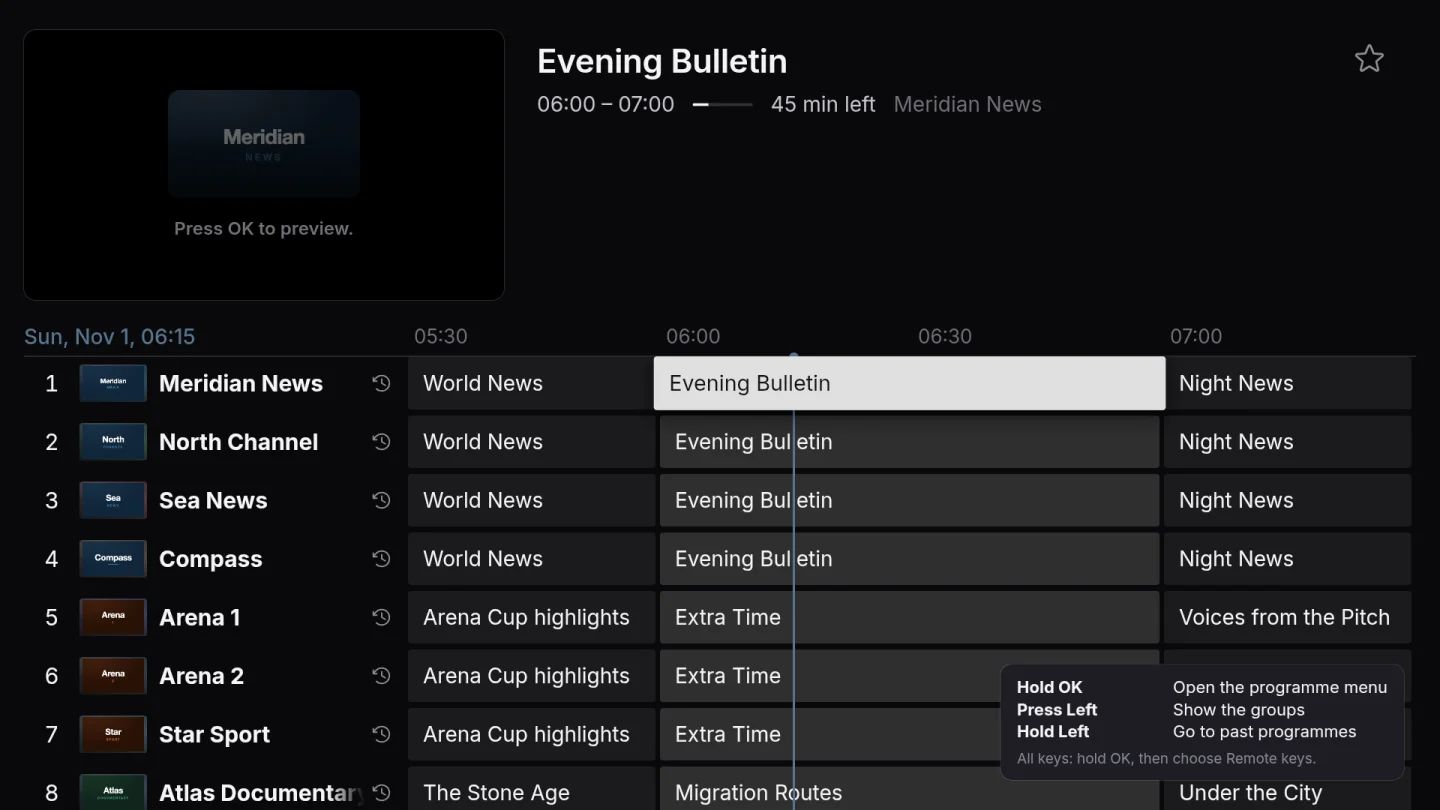
Programme guide

See programme information when your provider includes a compatible guide.

Programme guide

08 / 21

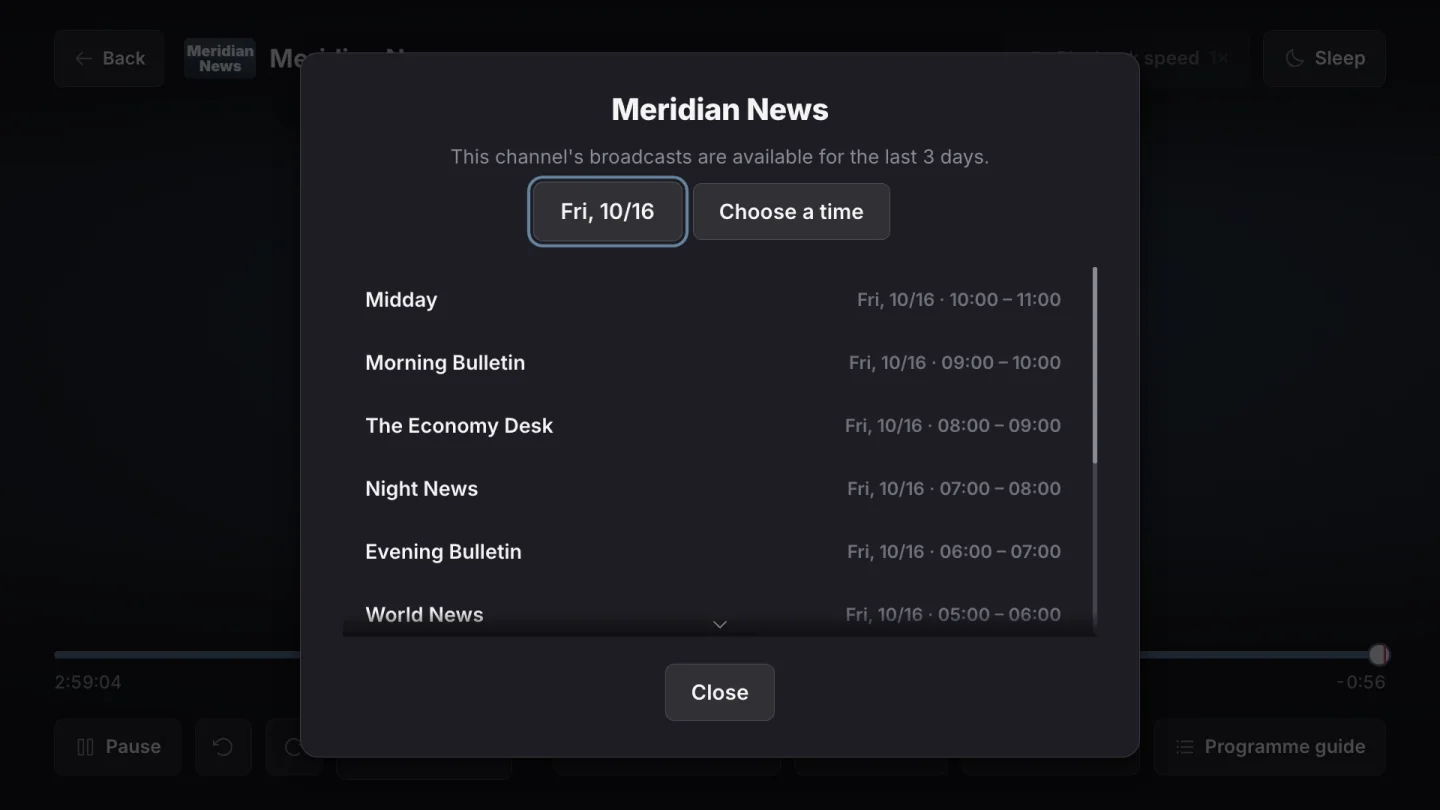
Return to an earlier programme.

Watch a programme from your provider’s archive when the source supplies catch-up. Availability and archive length depend on your provider.

Return to an earlier programme.
The shared Playova TV interface.

09 / 21

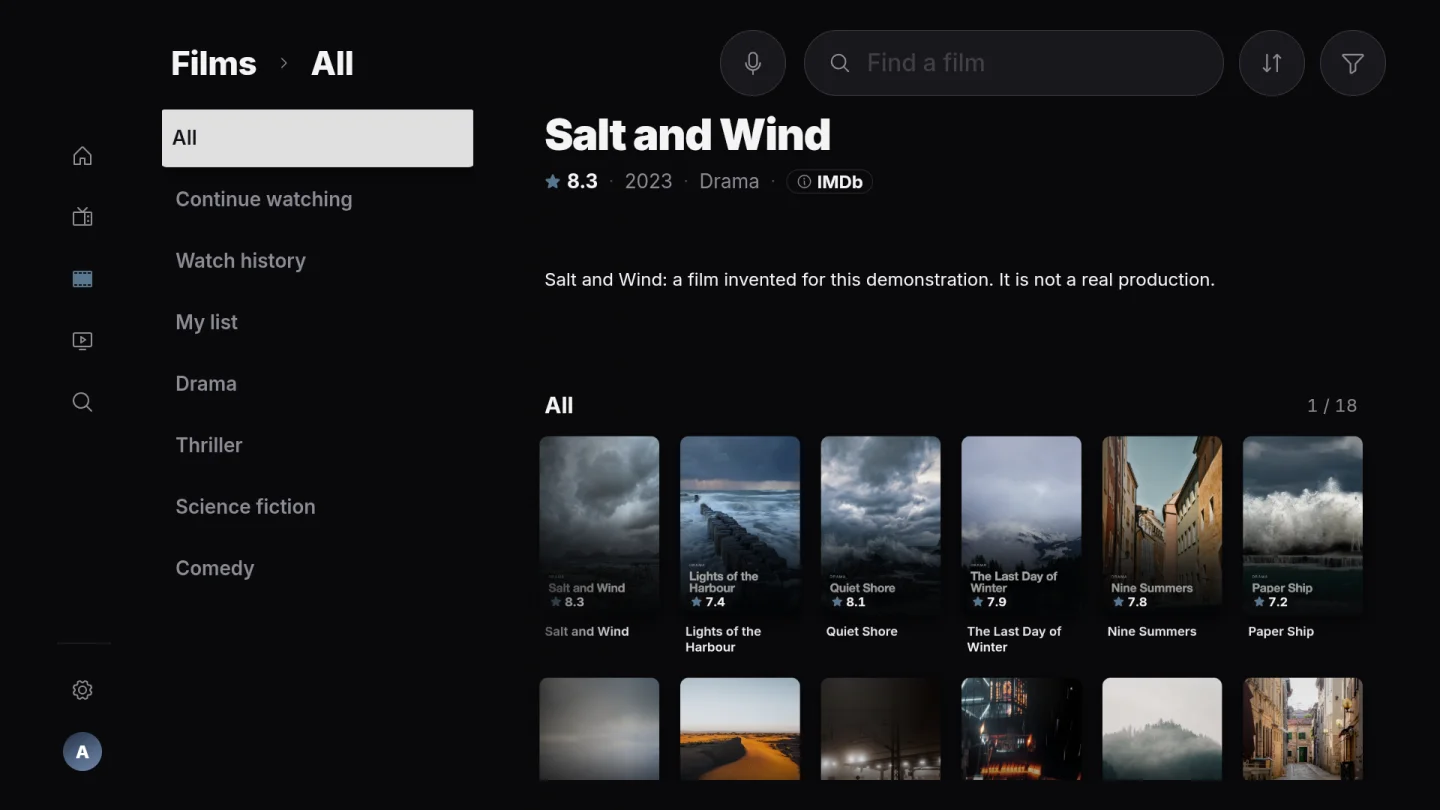
One title, a choice of sources.

Browse films and series across your sources. Matching titles can share one card; choose an available source when you open the title. Use filters to narrow the library.

One title, a choice of sources.

10 / 21

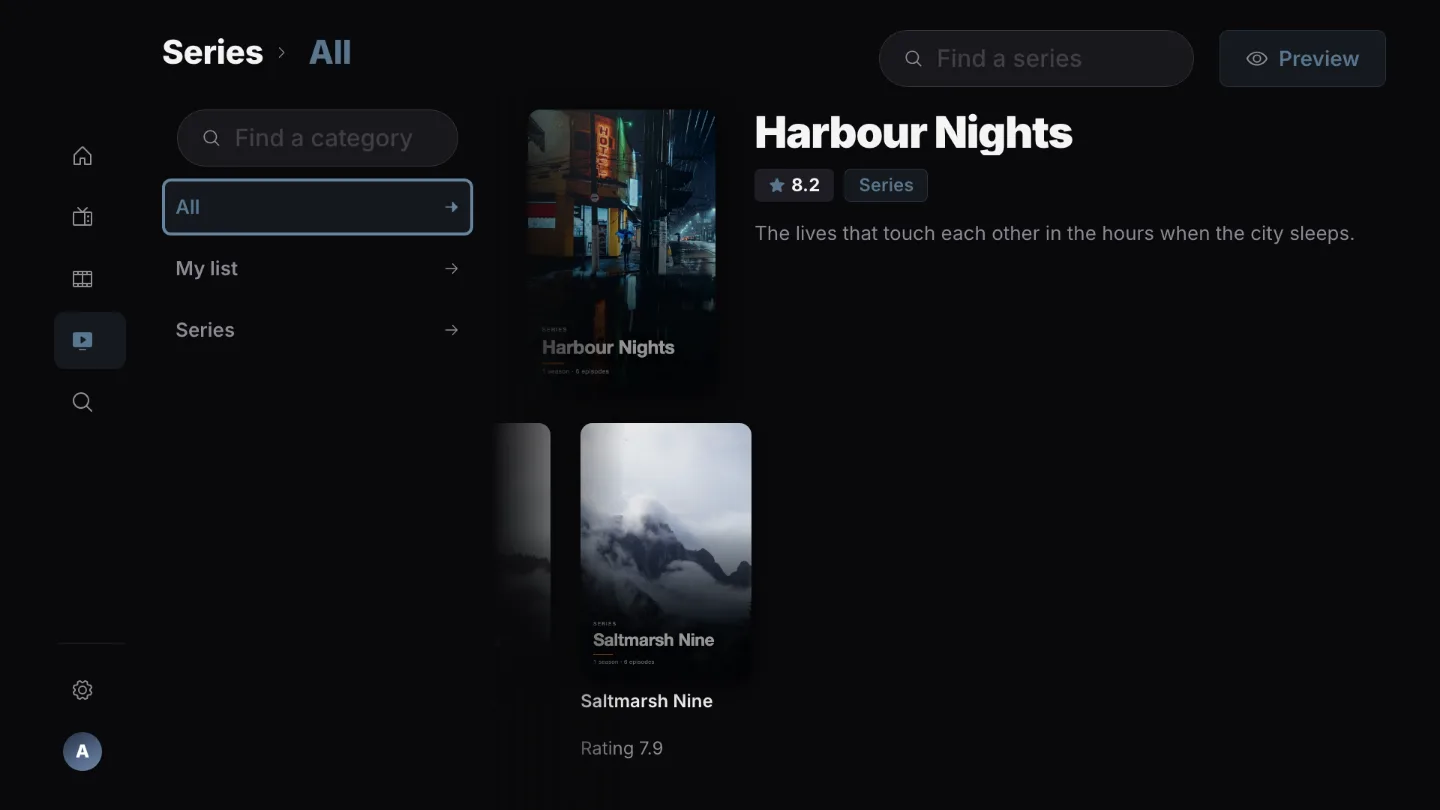
One episode leads to another.

Browse seasons and episodes from your source and choose the next part of the story.

One episode leads to another.
The shared Playova TV interface.

11 / 21

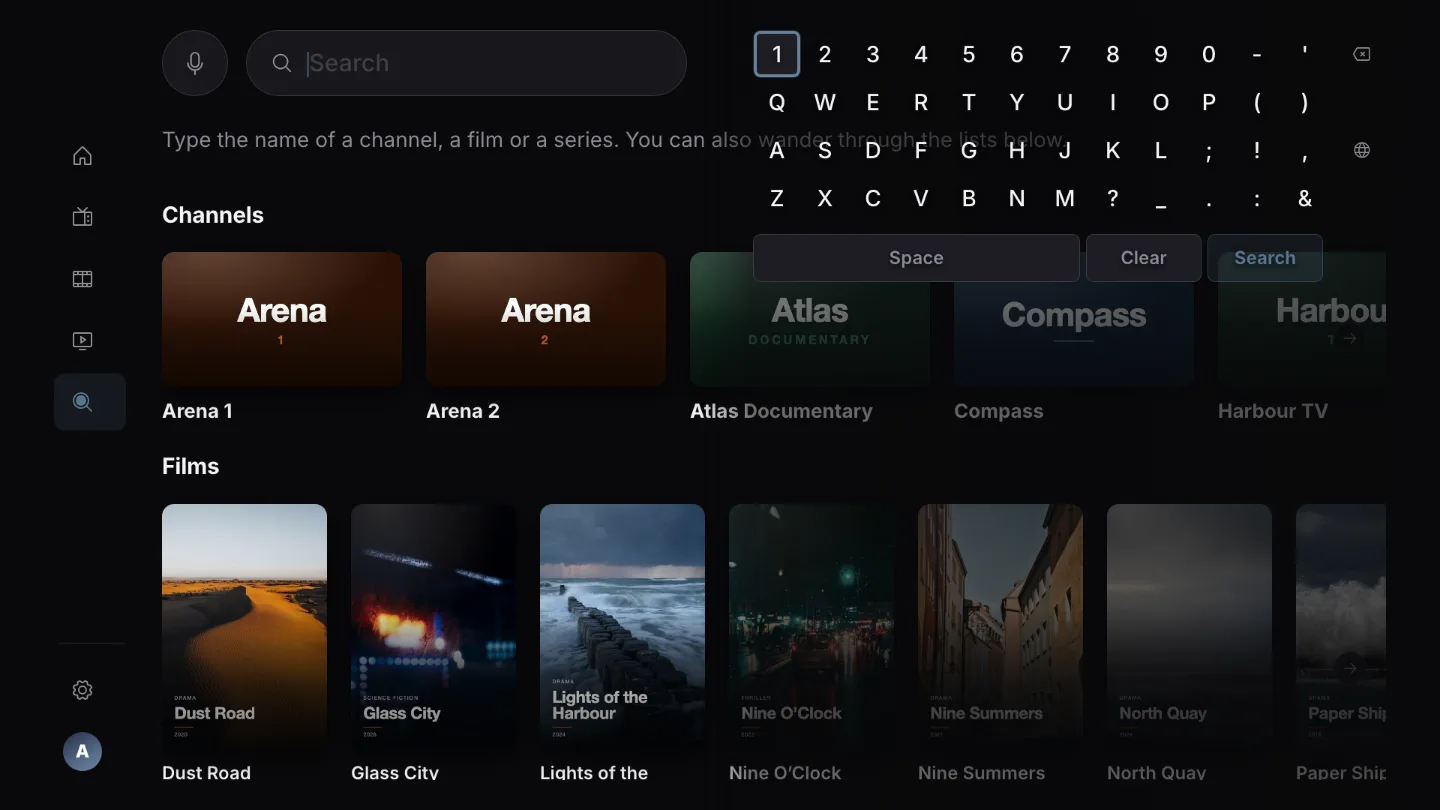
Search your source and return to the titles you want to watch.

Find what you want
The shared Playova TV interface.

12 / 21

Your favourite channels, closer.

Mark channels as favourites and find them again without browsing the whole channel list.

Your favourite channels, closer.
The shared Playova TV interface.

13 / 21

Pick up where you left off.

Return to the saved position in a film or episode. With Plus, supported devices can share viewing progress through the same Playova account.

Pick up where you left off.
The shared Playova TV interface.

14 / 21

Keep your next watch in mind.

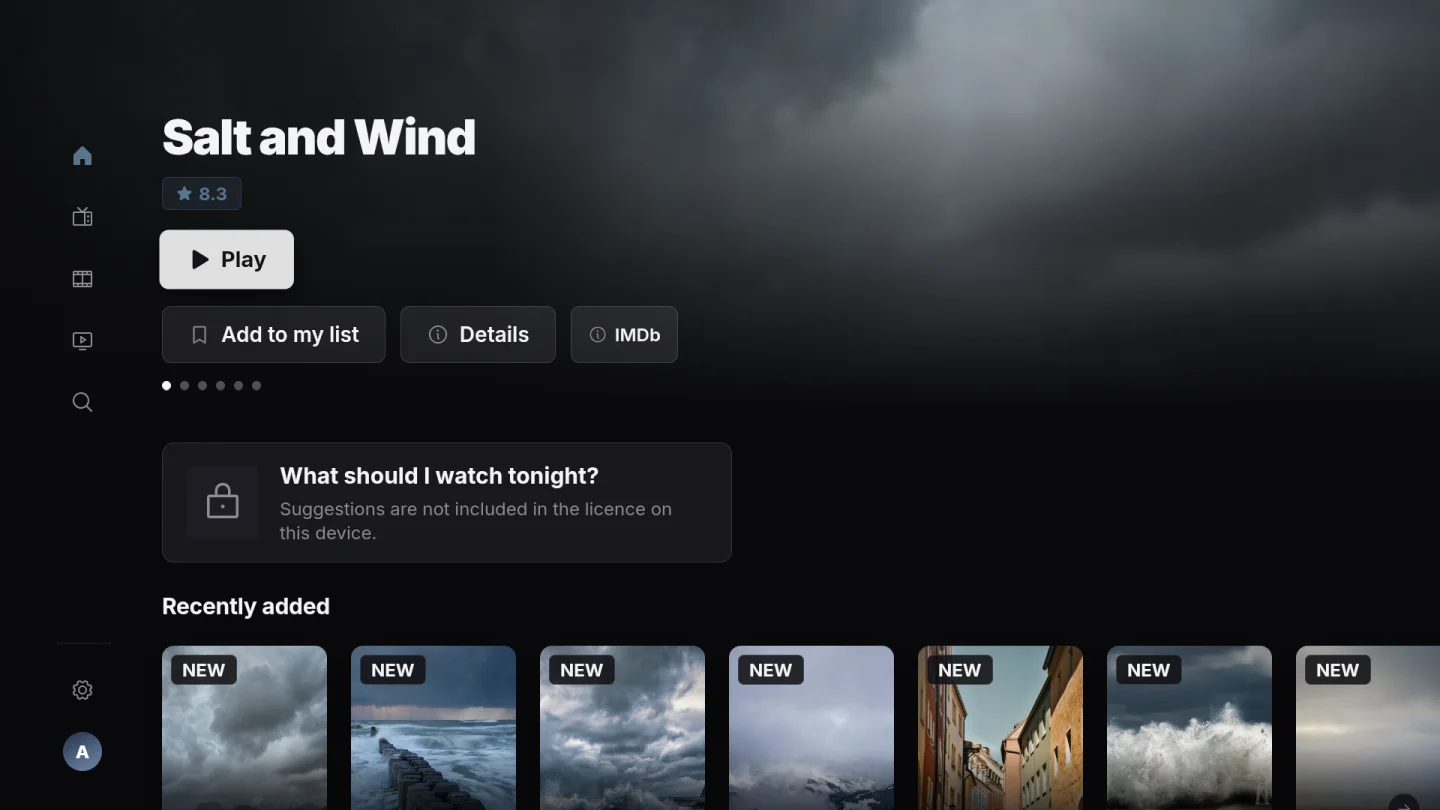
Add films and series to your personal list, then return when you have time to watch.

Keep your next watch in mind.

15 / 21

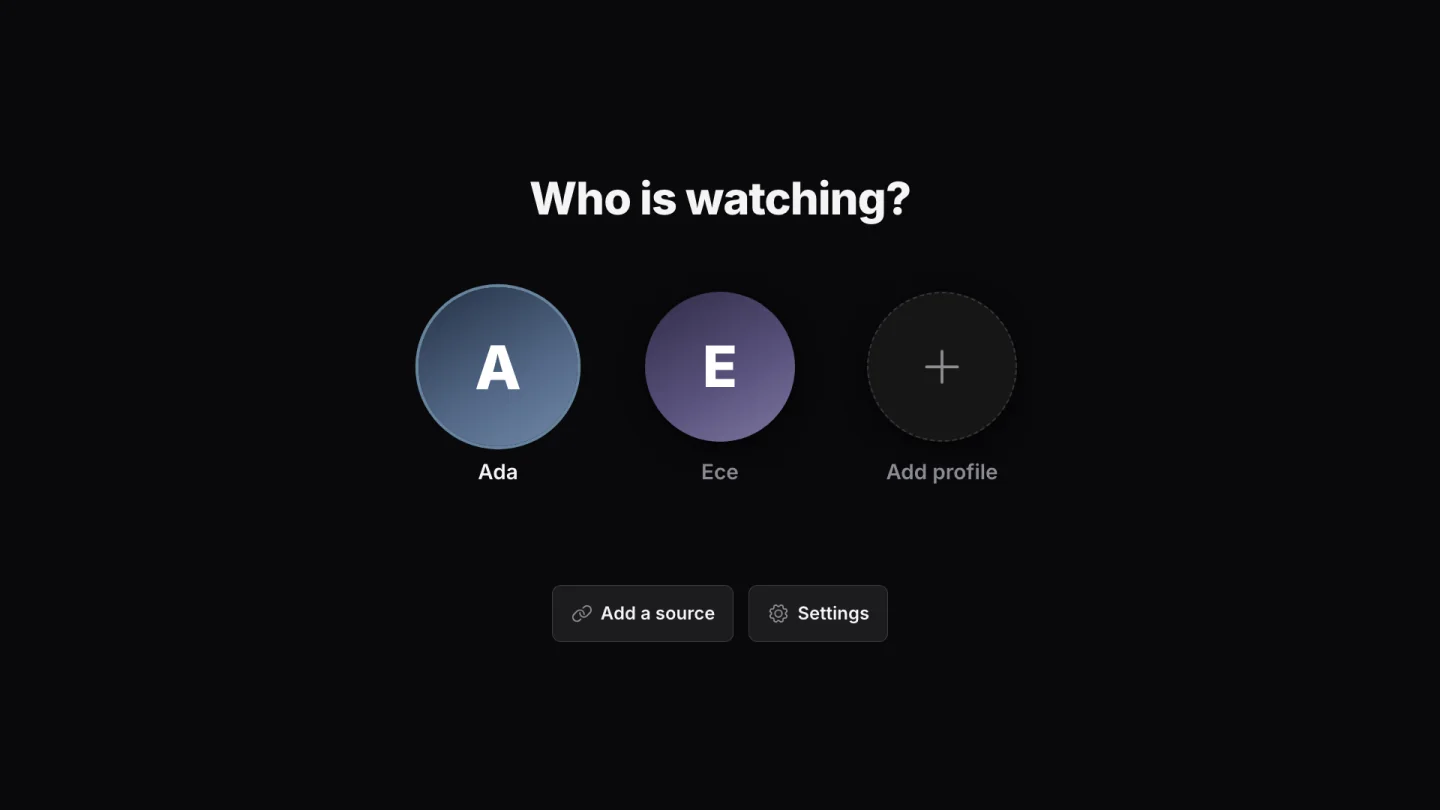
A space for each viewer.

Use separate profiles to keep personal choices and viewing history apart.

A space for each viewer.
The shared Playova TV interface.

16 / 21

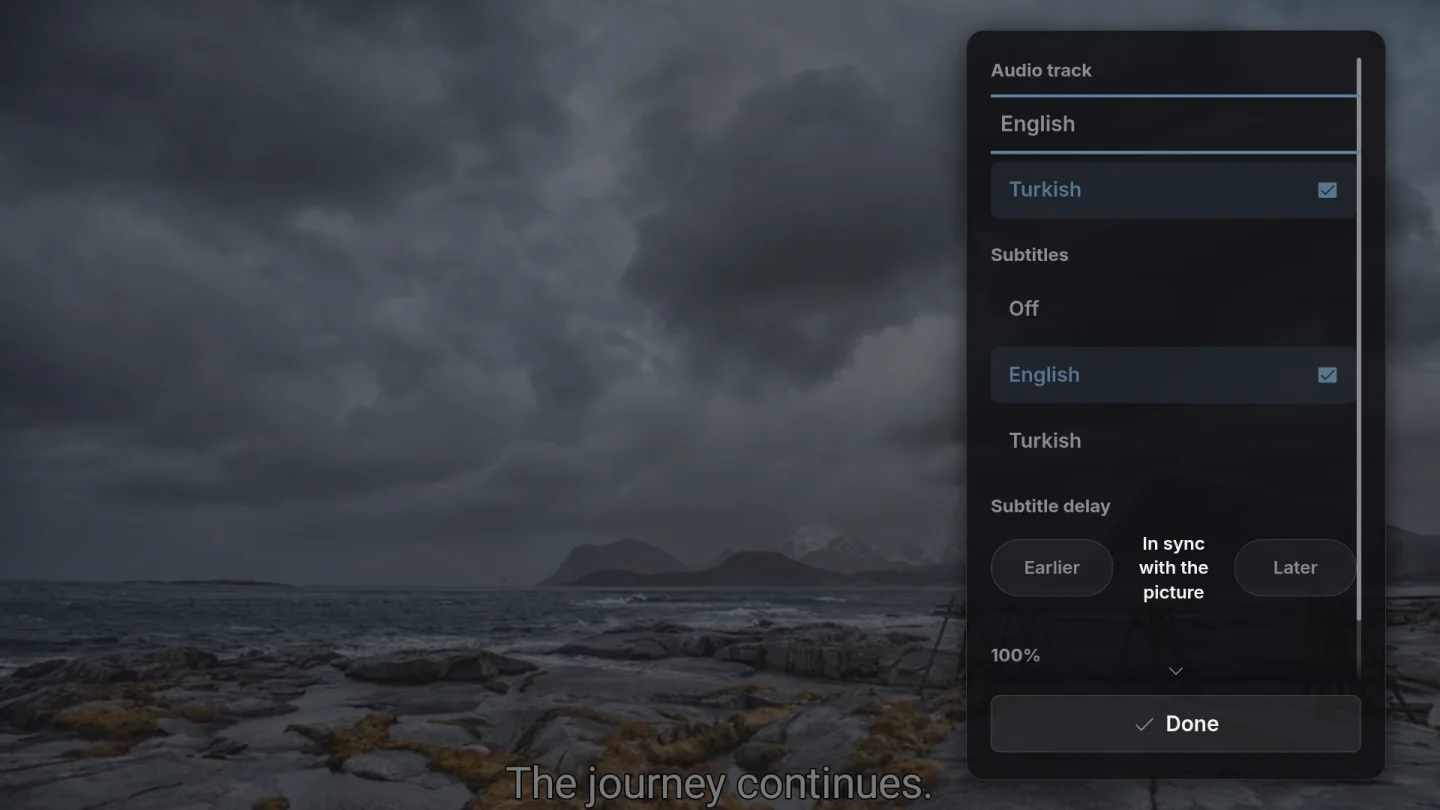
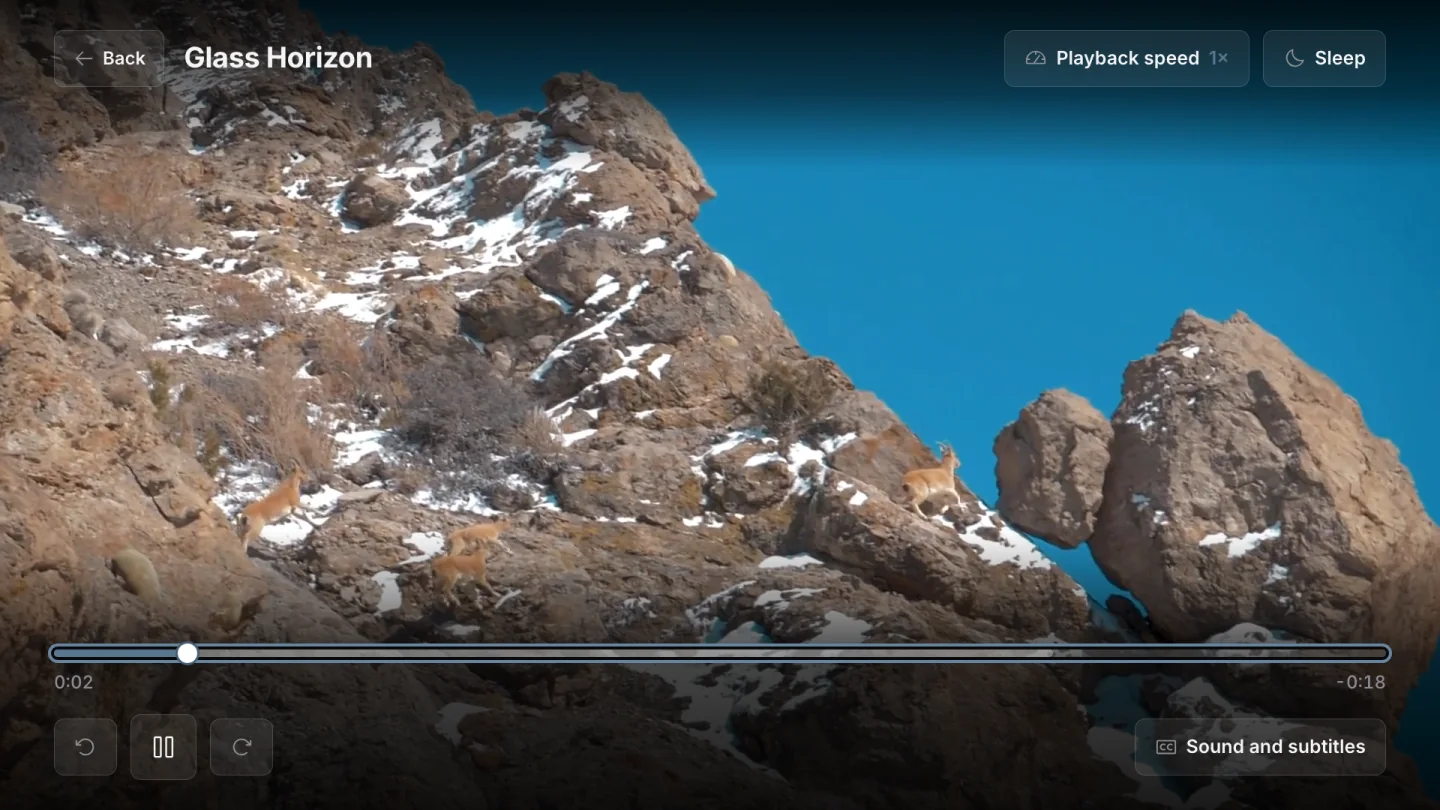
Choose how you hear and read.

Select available audio and subtitle tracks. The choices depend on what your source provides and your device supports.

Choose how you hear and read.

17 / 21

Let the player stop for the night.

Choose a sleep timer so playback stops after the time you set.

Let the player stop for the night.
The shared Playova TV interface.

18 / 21

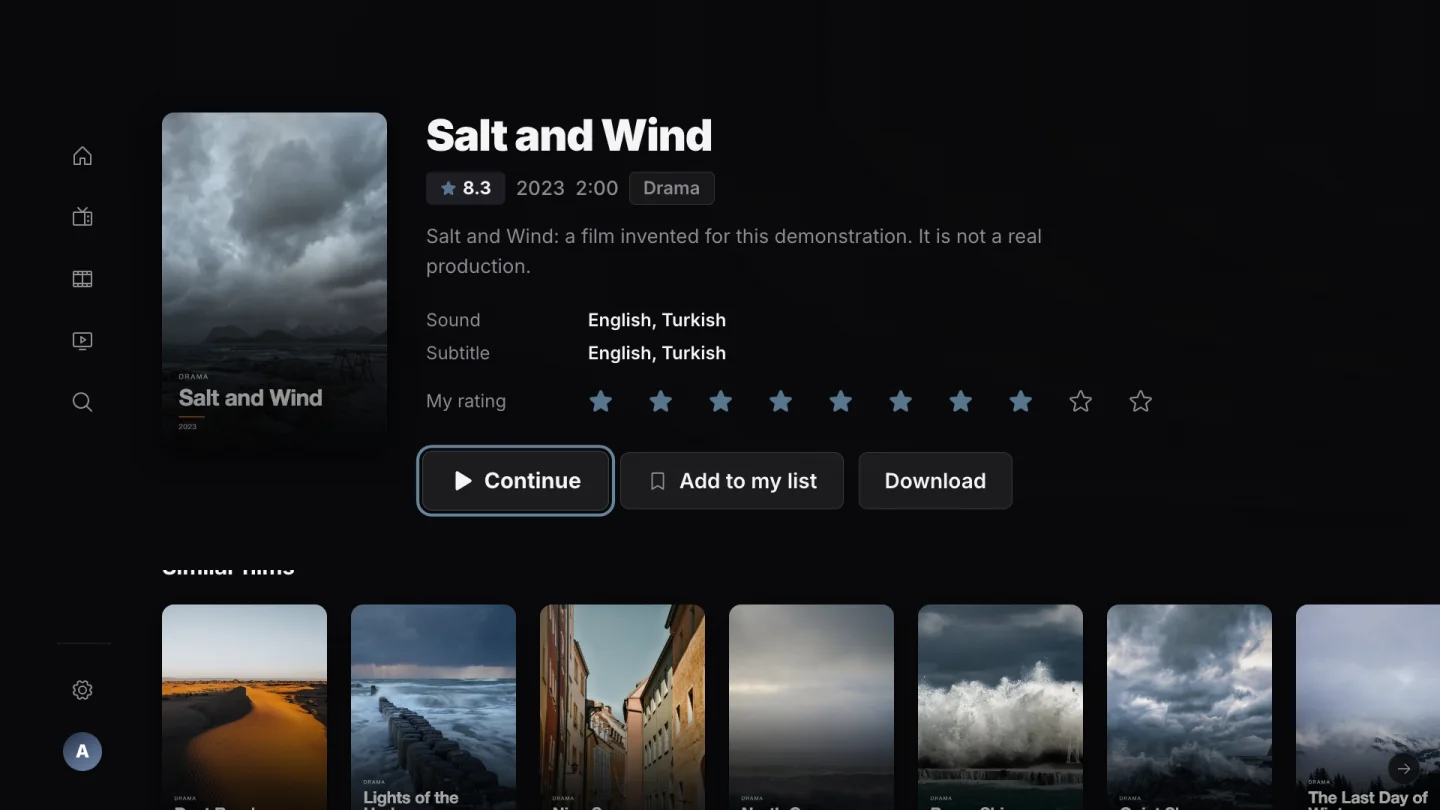
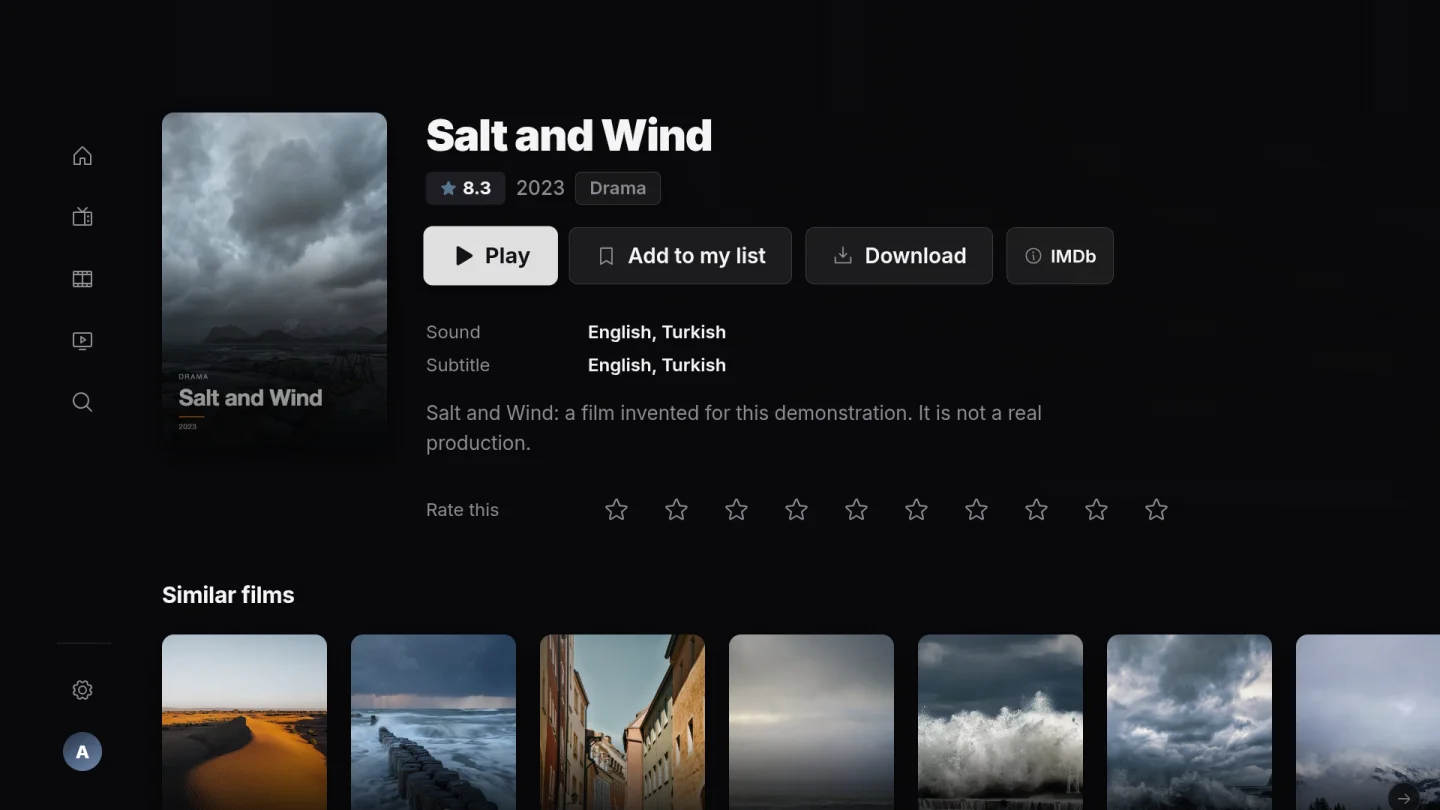
Choose with more context.

Explore film and series information, cast and directors. Open an available trailer or IMDb and TMDB information from the detail screen; information depends on the title and available metadata.

Choose with more context.

19 / 21

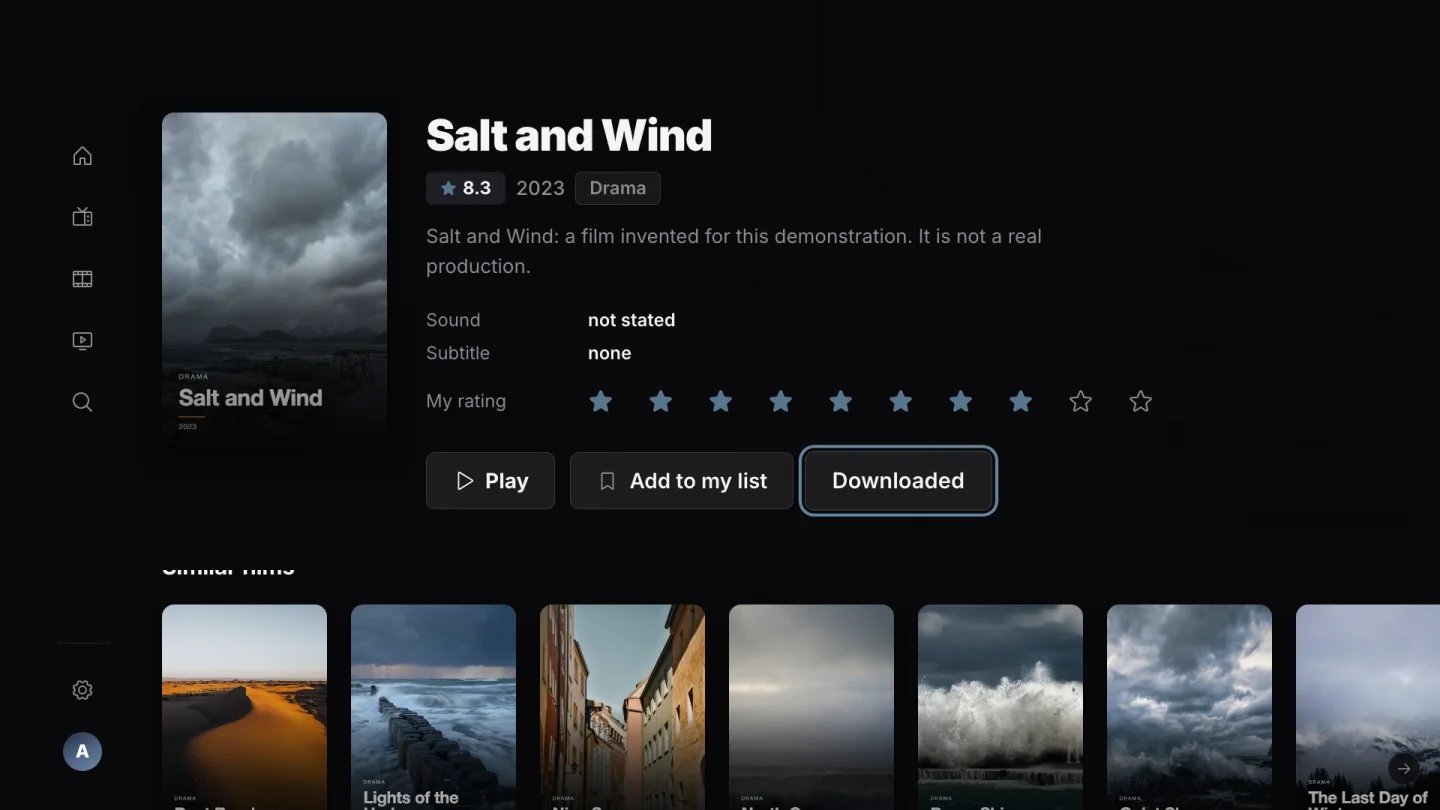
Remember what you thought.

Give a film or series your own score and keep your personal opinion with your library.

Remember what you thought.
The shared Playova TV interface.

20 / 21

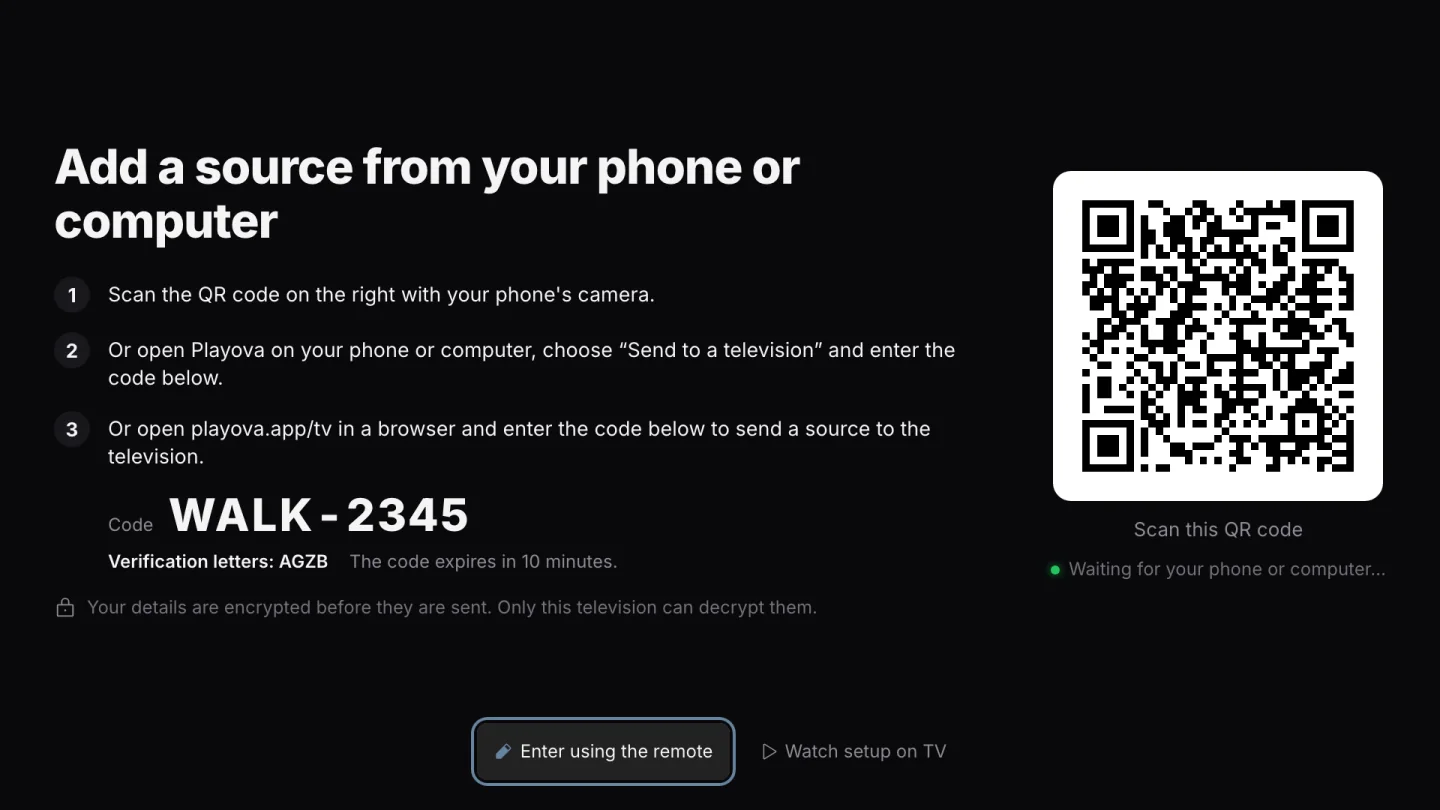
Bring your own source.

Add your authorised M3U playlist or Xtream Codes source and choose which source to browse. Playova provides no channels or subscription.

Bring your own source.
The shared Playova TV interface.

21 / 21

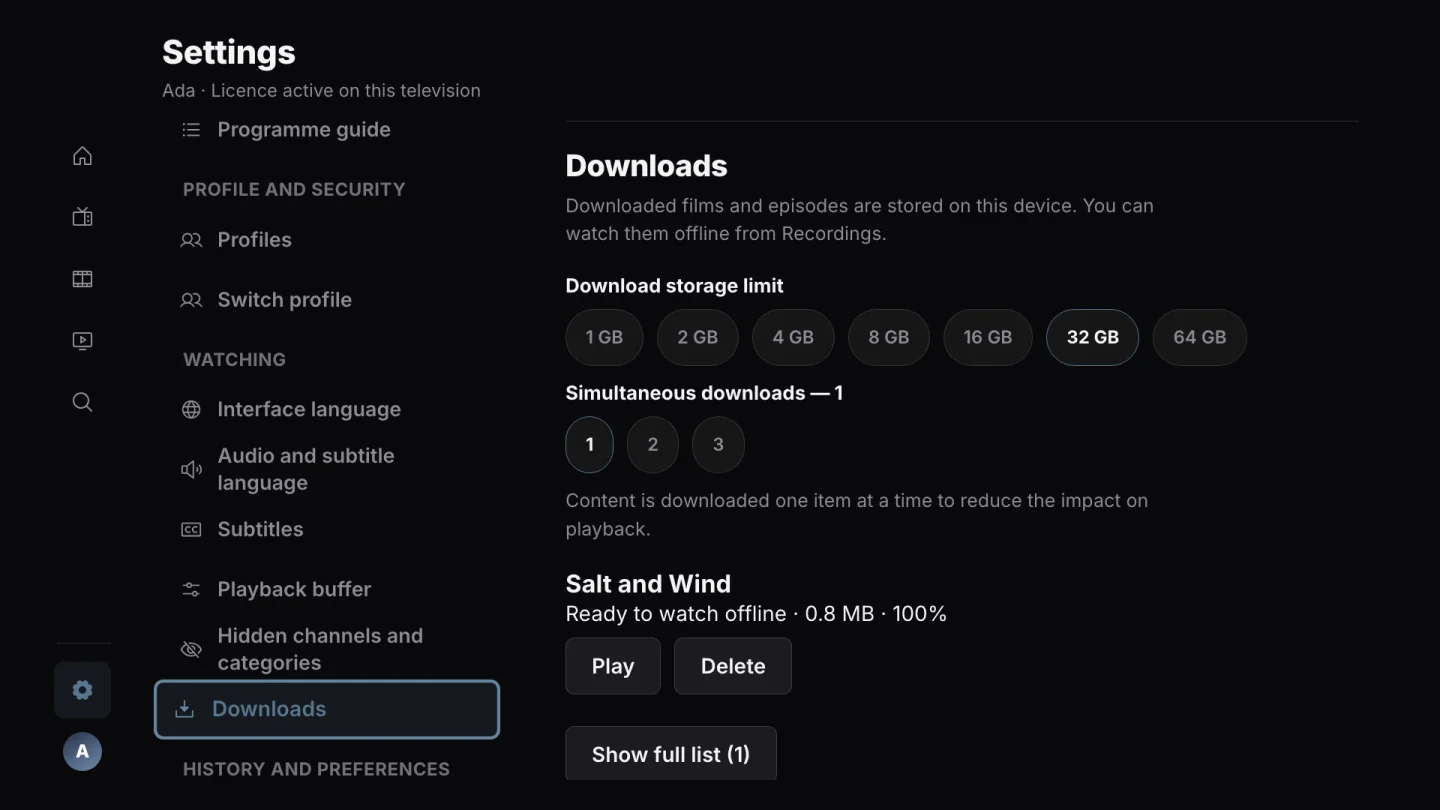
Save for later

Download supported films or episodes from your source for offline viewing. Source format, permission and available storage matter.

Save for later
The shared Playova TV interface.

TV guides

Fire TV questions, answered.

Can I watch two or four IPTV channels on Fire TV Stick 4K?

Playova’s Fire OS version supports up to four multiview screens: two side by side, or a grid for three or four. This is not a promise of four simultaneous 4K streams. Device resources, stream formats and bitrate, your network and your source’s connection allowance determine what works smoothly.

Does multiview need extra IPTV connections?

Each simultaneously playing channel needs an available connection from its source. Other playback or recording can use that allowance too. Playova cannot increase the connections included in your subscription. Check the limit with your provider before opening more screens.

Can one multiview layout include different playlists?

Yes. You can select channels from different sources and save a named layout. Playova checks the available connections separately for each source. Layouts are kept for the current profile and starting source.

Why does a second screen fail or multiview buffer?

Check that the source has a free connection and that each channel plays on its own. If channels work separately but struggle together, try fewer screens or a lower bitrate offered by your source. The Fire TV model, network and stream decoding requirements affect playback.

Can I record live TV and schedule recordings from EPG?

Yes, on the Fire OS version. Record the current channel or schedule an upcoming programme from an available guide. Leave the device powered, connected and with enough storage and source connections. Recording plans belong to that device; do not rely on a recording while it is unplugged or the app has been force-stopped.

Can I enter my M3U or Xtream Codes details from my phone?

Yes. Use Playova’s phone setup flow to send your authorised source details to the television instead of typing the whole address and password with the TV keyboard. You can also add the source with the remote.

Is this the version for Fire TV devices running Vega OS?

No. This page describes the Fire OS version, including Fire TV Stick 4K devices that use Fire OS. Vega OS is a different system with a separate Playova version. Check your device’s operating system before choosing an installation.

Does Playova include channels or an IPTV subscription?

No. Playova is a player for your own authorised M3U playlists or Xtream Codes sources. Channel availability, programme guide data, catch-up and permission to record depend on your source. A Playova licence does not buy access to channels.

Playova supplies no channels or IPTV subscription. Add your own source and only watch content you are authorised to use.

BASIC / PLUS

Try it free for 14 days.

Your trial starts when you add your first source. After the trial, watching requires paid Basic or Plus. Local prices are shown in the app.