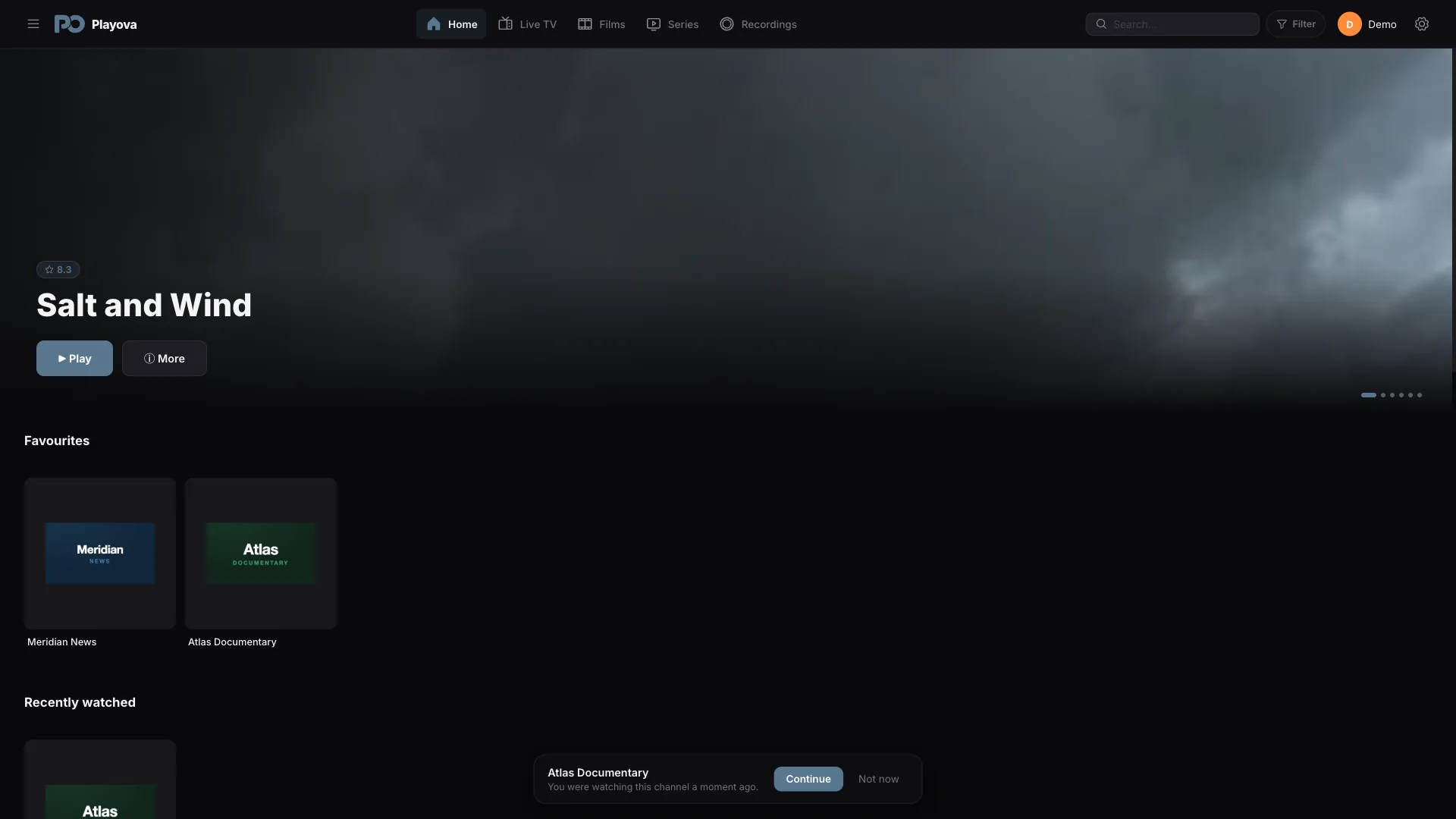
01 / 17Live rewind
Pause.Rewind.Resume.
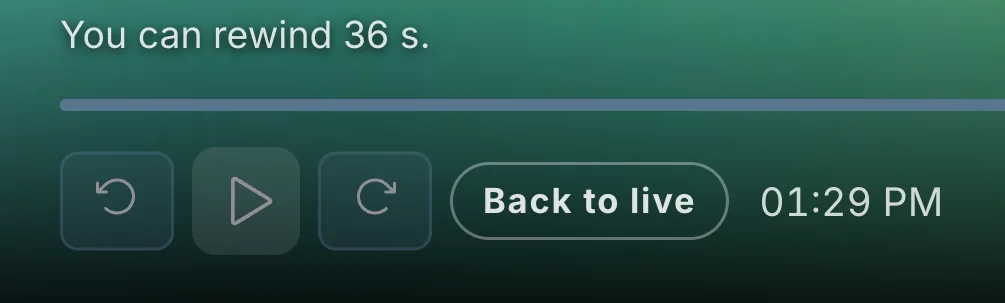
Return to moments you missed in the saved live buffer.

IPTV player for Mac
Your channels, movies and series. More ways to watch, save and pick up where you left off on your Mac.
Playova is in the Mac App Store. Direct downloads for Apple silicon and Intel are still offered here.
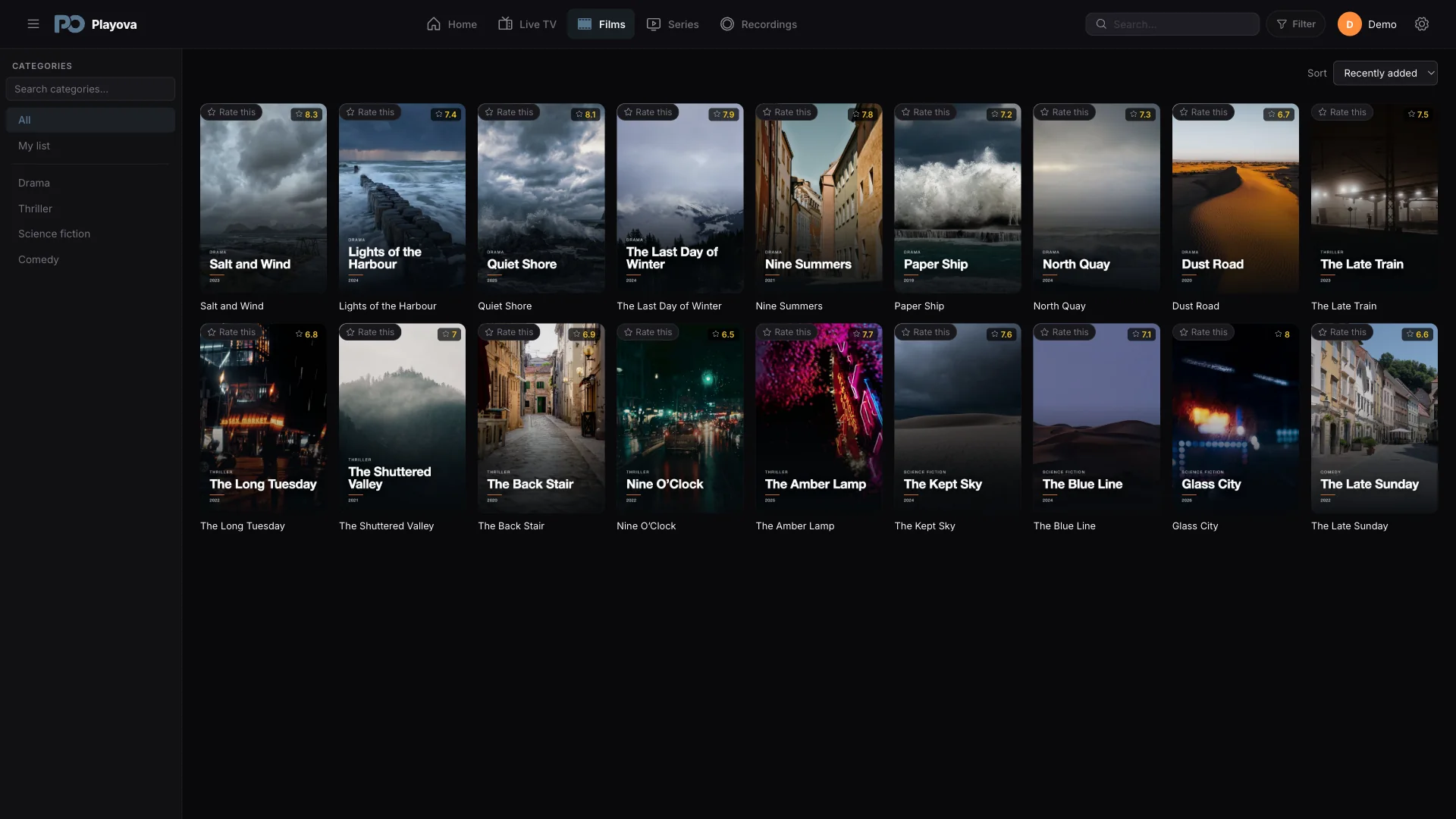
Bring your own M3U playlist or Xtream Codes source to a desktop library on your Mac. Browse your channels, movies and series, then pick up where you left off.
Install it from the Mac App Store, or choose a direct download for Apple silicon or Intel. Playova supplies no channels or IPTV subscription.
From live TV to your personal library, make viewing work your way.
01 / 17Live rewind
Return to moments you missed in the saved live buffer.
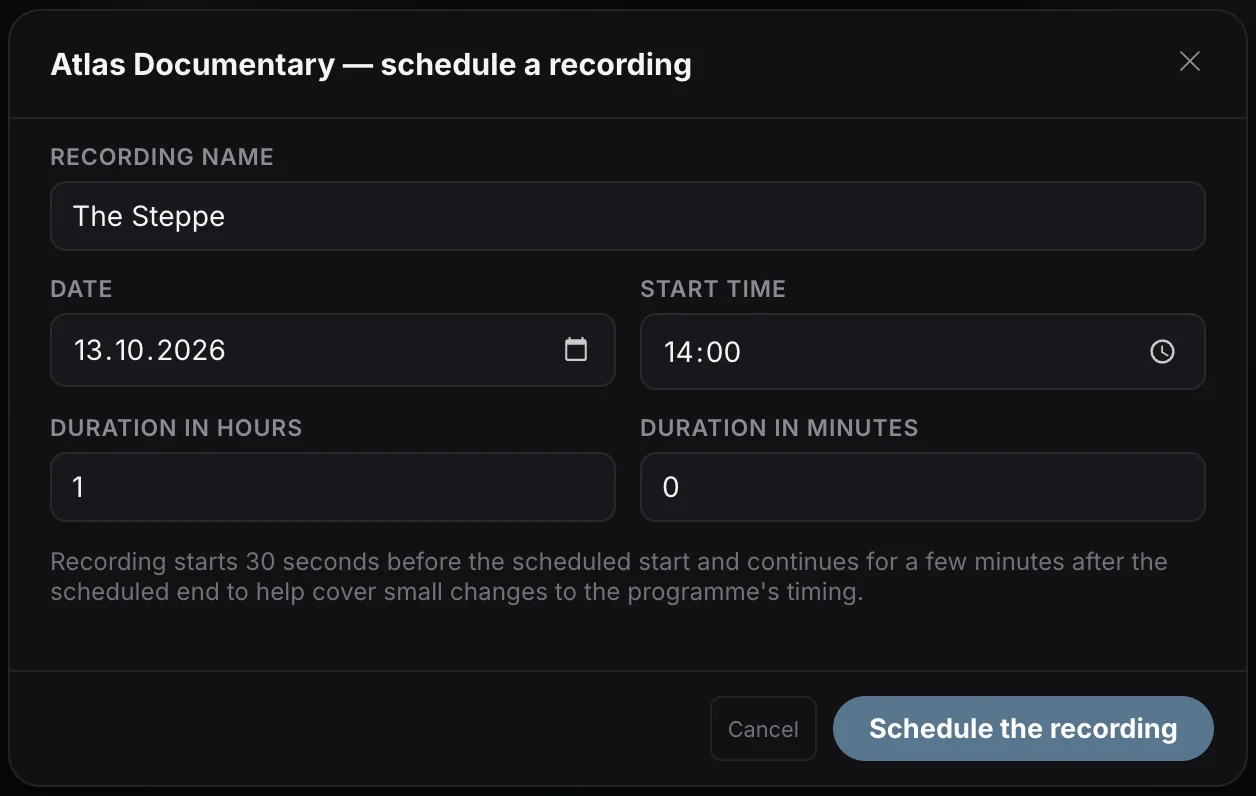
02 / 17Scheduled recording
Choose a programme from the guide. Set its start time and duration.
For recording, Playova must stay open and your Mac must stay awake, online and have enough free disk space.
03 / 17Offline viewing
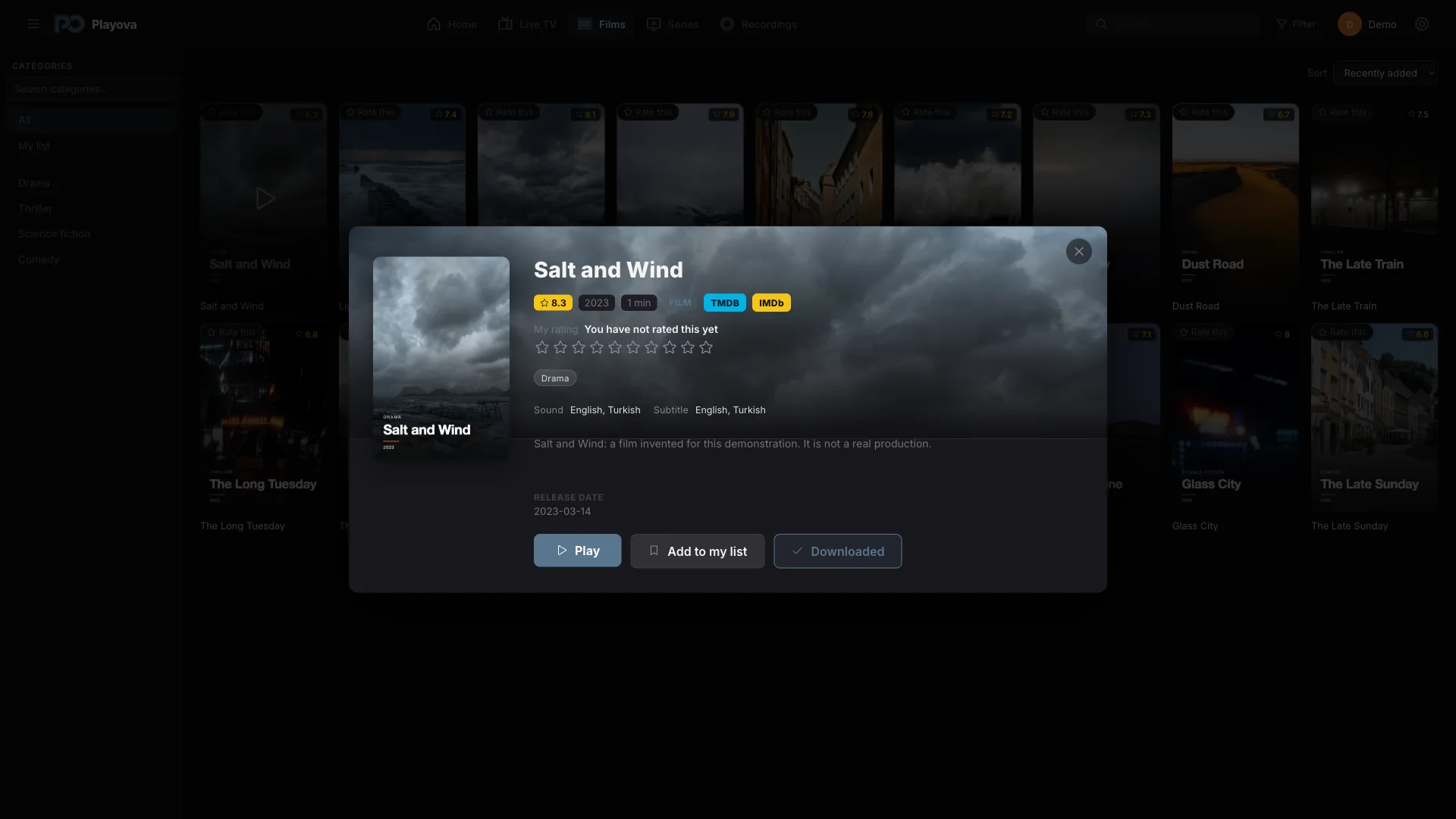
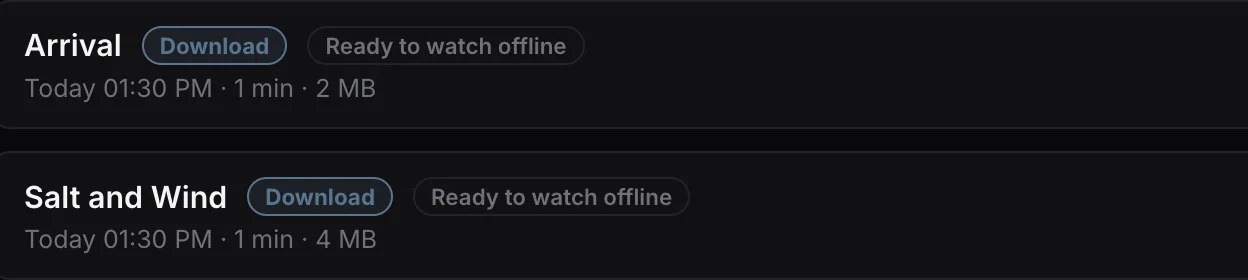
Download movies and episodes from your own source and watch without internet.
Offline viewing requires a completed download and enough disk space.
04 / 17Pick up where you left off
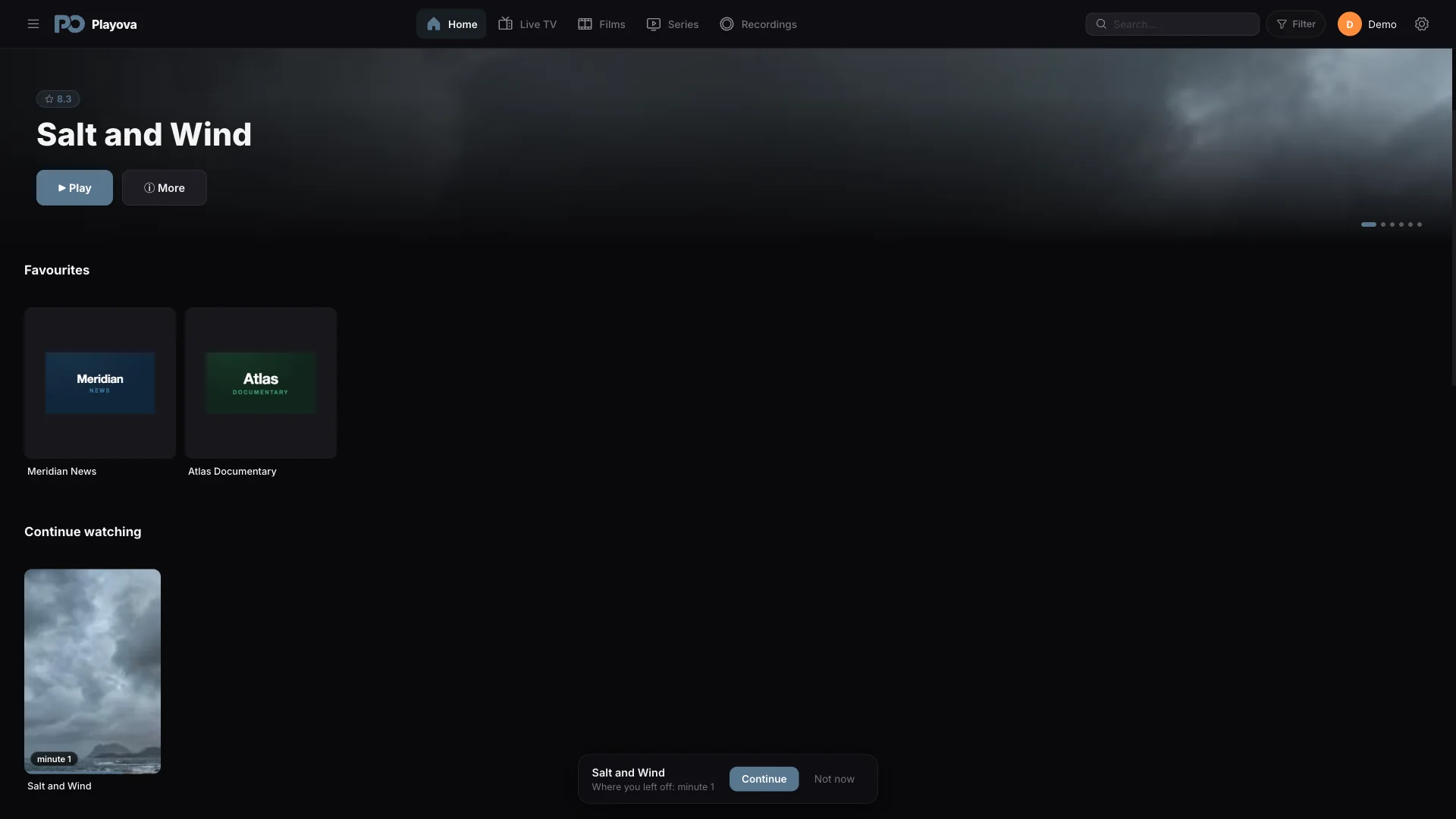
Pause on one device and pick up on another. Sync your movie and episode progress with Plus.
Plus · SyncRequires Plus, the same Playova account and source, a matching profile, and sync enabled. Sync requires internet.

05 / 17Audio and subtitles
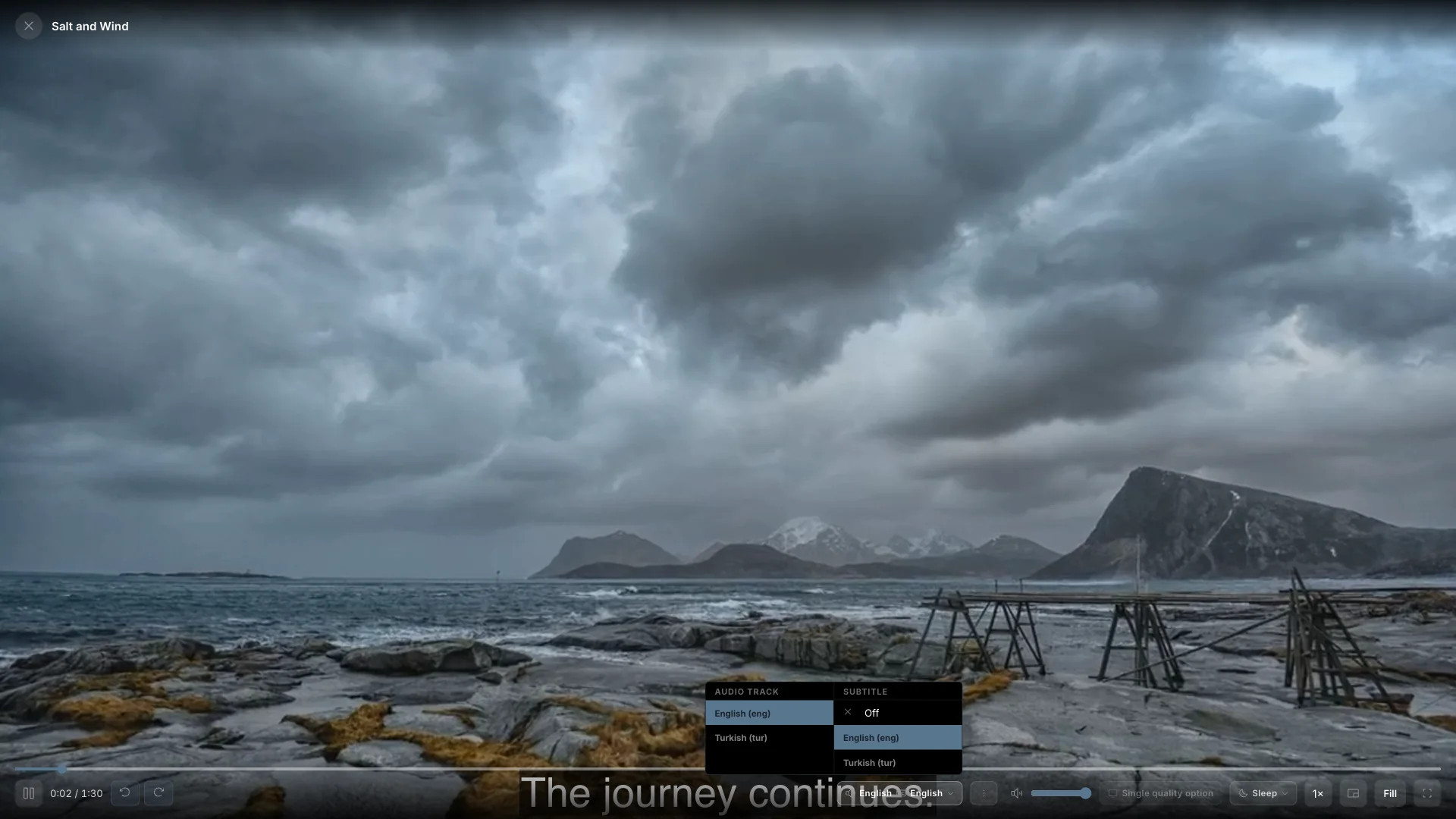
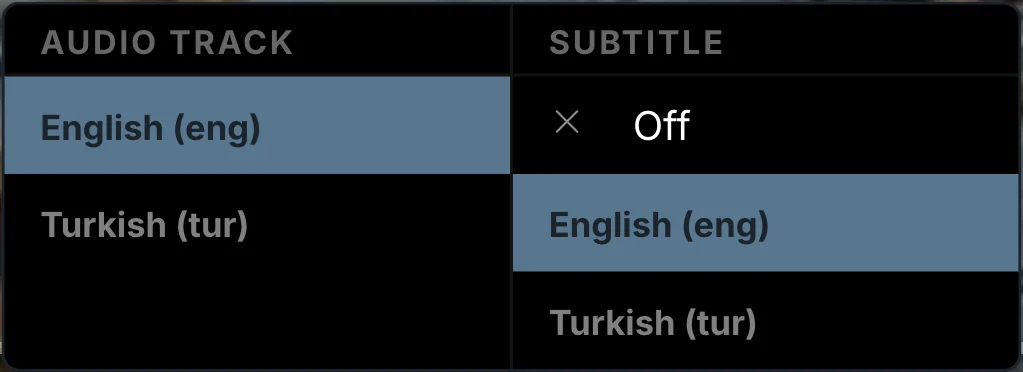
Original audio, your preferred subtitles. Start your films and series with the languages you choose.
Language preferences are saved in your profile. Automatic selection depends on the tracks available in each title.
06 / 17Programme guide
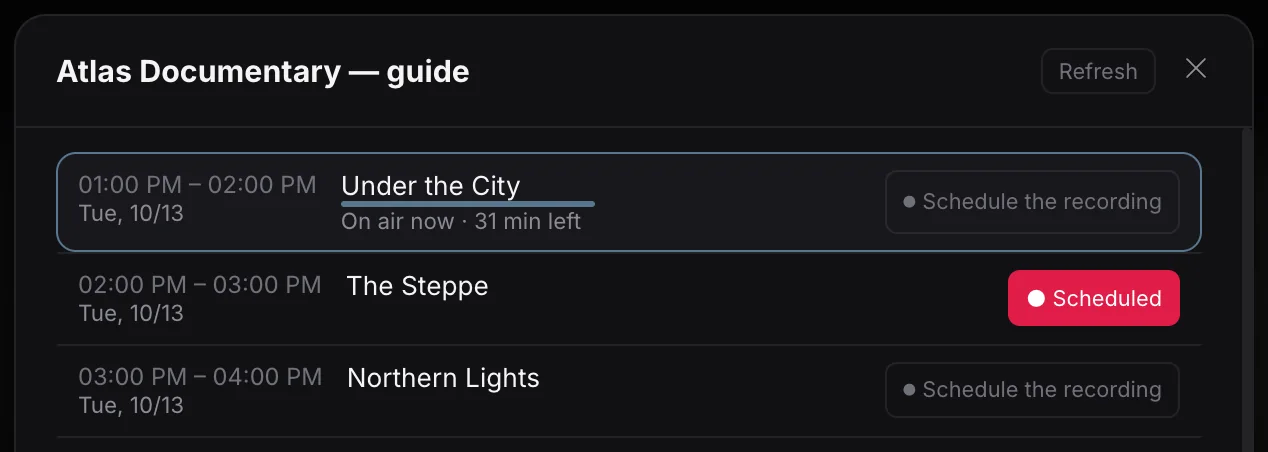
See channel schedules together and open programme details.
Programme guide information depends on the source you add.
07 / 17Movies and series
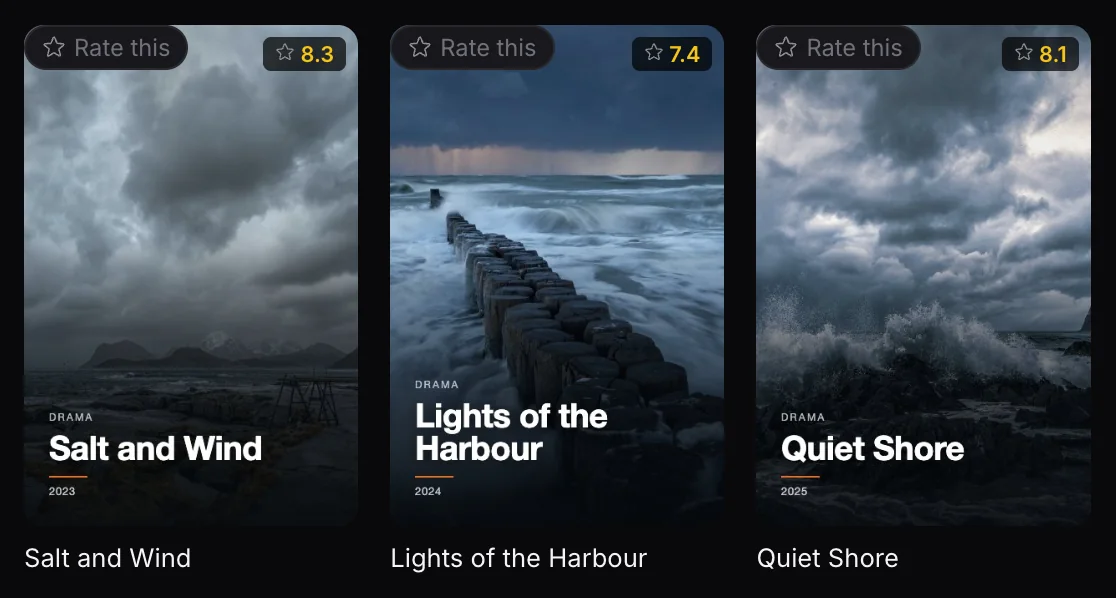
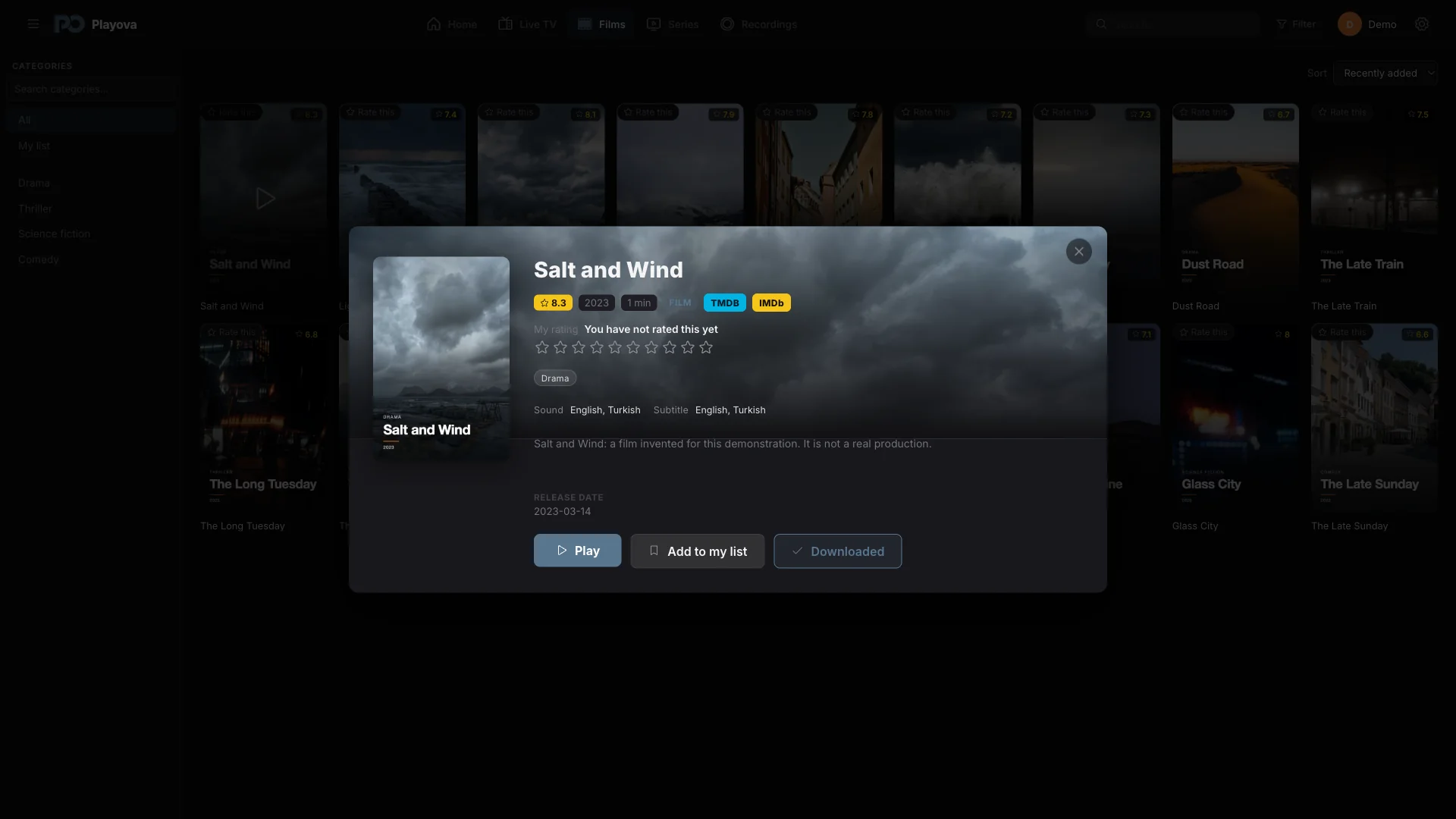
Find movies and series from your own source using posters, categories and search.
The titles shown are demo content. Playova does not supply movies, series or channel subscriptions.
08 / 17Search, filter and sort
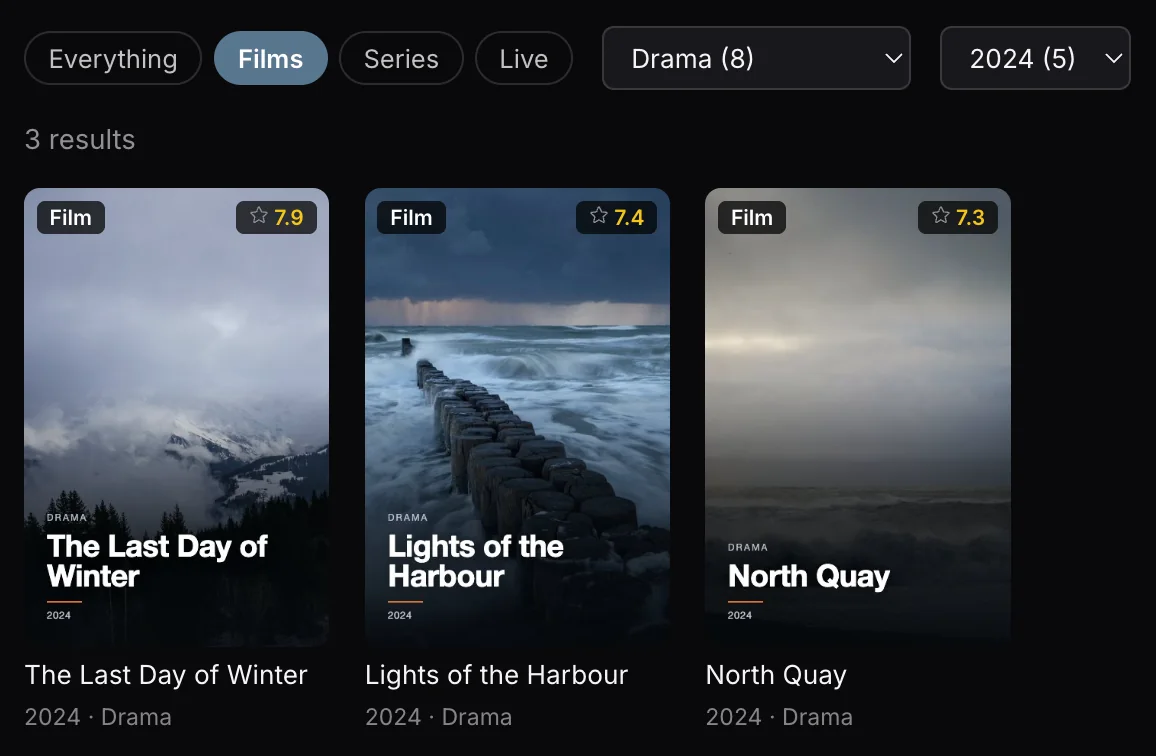
Filter movies by genre, year and rating. Sort your movie library by rating, name or date added.
Ratings and other filter information depend on the source you add.
09 / 17Favourite channels
Save the channels you like as favorites and find them in one list.
Favourites are shown for the selected profile and source.

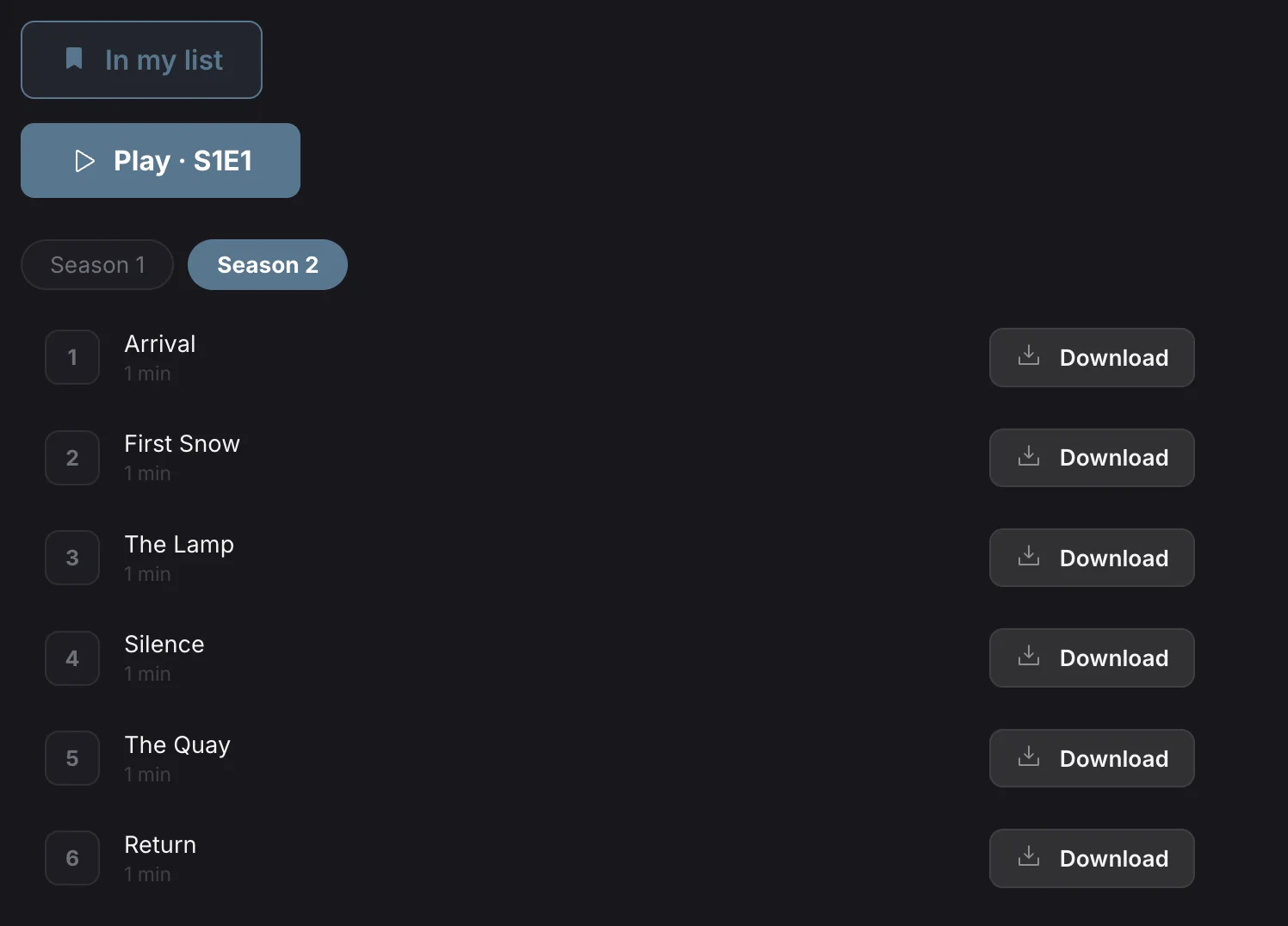
10 / 17Series and My List
Add the whole series to My List. Browse its seasons and choose an episode to watch.
Series, seasons and episodes depend on the source you add.
11 / 17Live recording
Record the live channel you are watching and open the recording later.
Recording requires Playova running, your Mac awake, a connection and enough disk space.


12 / 17Picture in picture
Watch your video in a separate small window while using your computer.
Video availability and playback depend on your own source.

13 / 17Profiles and PIN
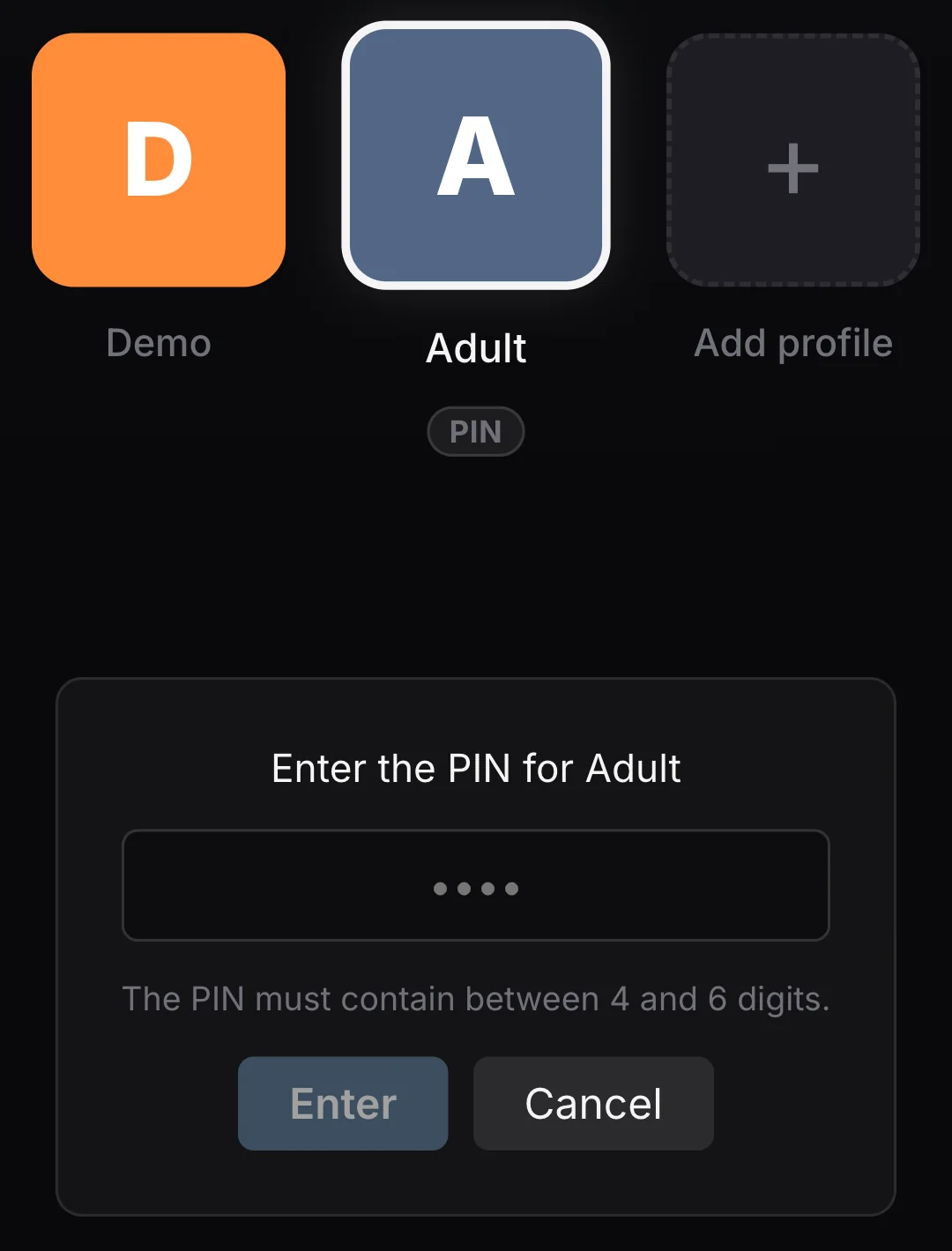
Create separate profiles and protect profile access with a PIN.
The PIN protects access to the selected profile.

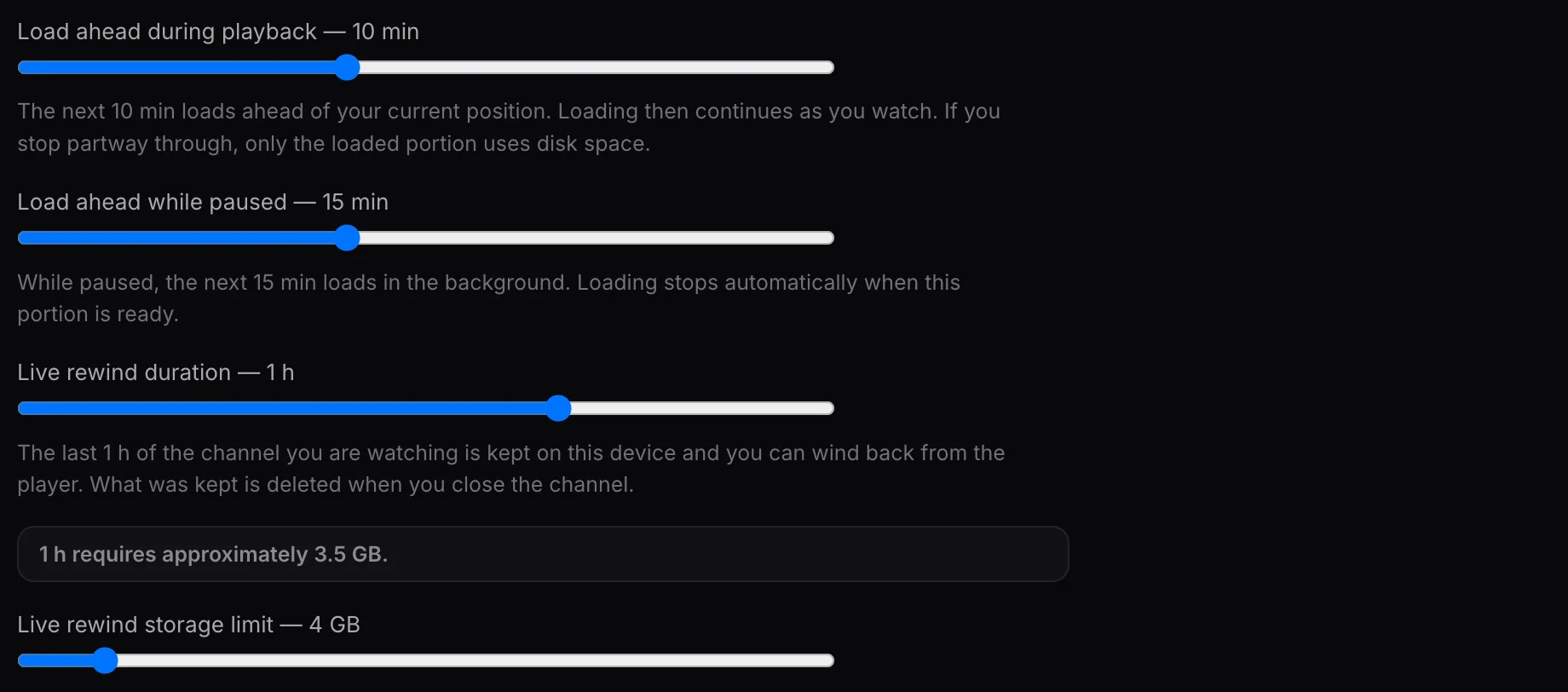
14 / 17Buffer options
Adjust preloading, pause buffering and live rewind options.
Buffer duration depends on stream bitrate and allocated storage.
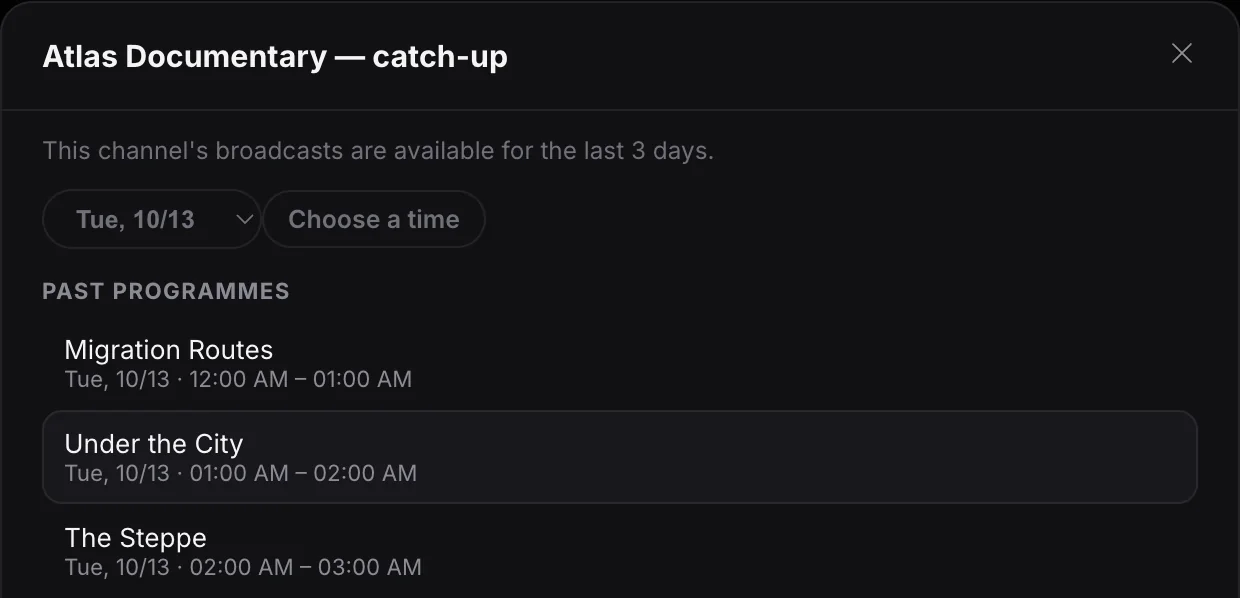
15 / 17Catch-up TV
Open past programmes from channels that offer a provider archive.
Requires archive support from your provider; availability and history vary by channel.
16 / 17Multiple sources
Add multiple M3U playlists and Xtream Codes accounts. Switch between your sources.
You must supply your own source. Playova does not sell IPTV subscriptions.
17 / 17IMDb and TMDB
Access IMDb and TMDB links from movie and series details.
External pages require internet; content and access depend on the respective site.

Playova needs macOS 13 or newer and runs on Apple silicon and Intel Macs.
Separate direct downloads for Apple silicon and Intel. Playova needs macOS 13 or newer.
Playova is in the Mac App Store. Direct downloads for Apple silicon and Intel are still offered here.
BASIC / PLUS
Your trial starts when you add your first source. After the trial, watching requires paid Basic or Plus. Local prices are shown in the app.
The direct download is not signed with an Apple Developer ID or notarised by Apple, so macOS may block its first launch. The Mac App Store version does not need this step.
Open the DMG, drag Playova to Applications, then try opening it there. If macOS cannot verify the developer or check the app, and you trust this download, open System Settings → Privacy & Security → Open Anyway, if offered, then confirm Open. This option may not be available for this package.
If macOS says the app is damaged, will damage your computer, or contains malware, stop and contact support. These warnings are different from an unverified developer; do not dismiss them with a Terminal command.
Apple’s instructions for opening apps safely ↗
If Homebrew is already installed, run this command in Terminal. Otherwise, follow the official Homebrew installation instructions first. Homebrew ↗
brew install --cask playova-app/tap/playovaThis cask chooses the package for your Mac and removes its quarantine attribute automatically. That changes a macOS security check; it does not mean Apple has approved or notarised the app. Review the cask before installing. Homebrew (GitHub) ↗
Yes. Playova is in the Mac App Store, and the direct download is still offered on this site.
The Mac App Store version runs on both. For the direct download, choose Apple silicon for an M-series Mac, or Intel for a Mac with an Intel processor; they are separate packages.
Buy Basic or Plus inside Playova installed from the Mac App Store. A direct download opens with Plus bought on another device. Sign in to Playova before buying Plus, then use the same Playova account on your other supported devices. Device limits apply.
Keep Playova open and your Mac awake, online and connected to writable storage. Closing the lid can put your Mac to sleep and interrupt a recording. Your provider must permit recording.